Advanced, optional
Port Forwarding (D-Link calls Port Fowarding as "Virtual Server")
Infrastructure Requirement:
If you have static or quasi-static IP and the "User Policy" of your ISP allows it, you can run an in-house web or mail servers.
Infrastructure obstacles:
Some paranoia ISPs don't allow you to run any servers, they change the IP address frequently or block the TCP/IP ports on their network routers , it is impossible for the outside world to reach you. The solution is to change to a more user friendly ISP or wait 10 years for these paranoia ISP kids to mature. Some ISPs give you an IP address within the RFC1918 "private block", in that case, you will never be able to run in-house servers.
Disclaimer

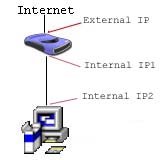
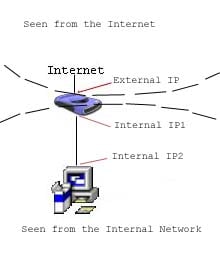
Set the IP address of above "server" to a "static IP", e.g. 192.168.10.4
(subnet mask = 255.255.255.0, gateway=192.168.10.1, DNS see this page)
Optional Advanced:
According to Seawall's documentation, you can run a Microsoft PPTP-VPN server in-house behind this LRP-Seawall firewall. However, you need to add a module called ipfwd, see this page on how to add ipfwd module. I have not tested a Microsoft PPTP-VPN server behind this LRP to see if it really does work or not. Several people reported it does work by setting the VPN server to have all IP addresees merged into the same NIC card. Here are some tips from Microsoft on how to set up a PPTP server behind a NAT firewall. The LRP on this site is a NAT firewall.
 Use of ftp or telnet is unsafe because of the unencrypted password of the ftp and telnet protocols. Also, due to the nature of the ftp protocol, ftp clients behind some brands of corporate firewalls will have trouble accessing your ftp server behind LRP firewall.
Some ISP use proxy server to intercept all your network traffic, in that case, despite the appearance that you have an "externally accessible" IP address, you cannot run servers in-house. Check with your local friends who use the same ISP as yours, to find out if that applies in your area. Or go to www.analogx.com to download a free, instant web server (look under software, network, Simple-Server) and install it at your friends computer and see if you can surf to his/her web site. You need to use the IP notation such as http://24.2.54.23/ See this page on how to find out his/her IP address. After that test, un-install the analogx web server on your friends computer.
Disadvantage: Alice, Bob and Charlie will have to use http://192.168.10.4/ to access your
own www server, instead of the usual http://www.mydomain.com/ this can be very annoying.
Opening of any port must be done with care and deliberations. Every port you open (port forward) reduces the overall safety of the firewall.
If you have 2 static IP addresses, you can use one IP address for the firewall and one IP address for the server (outside the firewall). Note that the server is "exposed" to the outside world without the LRP firewall protection.
There is no need to configure any "port forwarding" on the LRP in this configuration.

If you set up a email server in-house, make absolutely sure you add anti-spam measures (aka block relays) or else spammers will quickly find you and use your email server to send millions and billions of junk mails through your email server (they send continuously, non-stop, until your cable modem company or ADSL company finds out, or spam victims complain to your ISP, then your ISP will cut your wire!)
Port Forwarding (D-Link calls Port Fowarding as "Virtual Server")
Infrastructure Requirement:
If you have static or quasi-static IP and the "User Policy" of your ISP allows it, you can run an in-house web or mail servers.
Infrastructure obstacles:
Some paranoia ISPs don't allow you to run any servers, they change the IP address frequently or block the TCP/IP ports on their network routers
, it is impossible for the outside world to reach you. The solution is to change to a more user friendly ISP or wait 10 years for these paranoia ISP kids to mature. Some ISPs give you an IP address within the RFC1918 "private block", in that case, you will never be able to run in-house servers. Disclaimer
Set the IP address of above "server" to a "static IP", e.g. 192.168.10.4
(subnet mask = 255.255.255.0, gateway=192.168.10.1, DNS see this page)
Optional Advanced:
According to Seawall's documentation, you can run a Microsoft PPTP-VPN server in-house behind this LRP-Seawall firewall. However, you need to add a module called ipfwd, see this page on how to add ipfwd module. I have not tested a Microsoft PPTP-VPN server behind this LRP to see if it really does work or not. Several people reported it does work by setting the VPN server to have all IP addresees merged into the same NIC card. Here are some tips from Microsoft on how to set up a PPTP server
behind a NAT firewall. The LRP on this site is a NAT firewall. Use of ftp or telnet is unsafe because of the unencrypted password of the ftp and telnet protocols. Also, due to the nature of the ftp protocol, ftp clients behind some brands of corporate firewalls will have trouble accessing your ftp server behind LRP firewall. Some ISP use proxy server to intercept all your network traffic, in that case, despite the appearance that you have an "externally accessible" IP address, you cannot run servers in-house. Check with your local friends who use the same ISP as yours, to find out if that applies in your area. Or go to www.analogx.com to download a free, instant web server (look under software, network, Simple-Server) and install it at your friends computer and see if you can surf to his/her web site. You need to use the IP notation such as http://24.2.54.23/ See this page on how to find out his/her IP address. After that test, un-install the analogx web server on your friends computer.Disadvantage:
Alice, Bob and Charlie will have to use http://192.168.10.4/ to access yourown www server, instead of the usual http://www.mydomain.com/ this can be very annoying.
Opening of any port must be done with care and deliberations. Every port you open (port forward) reduces the overall safety of the firewall.| If you want to run a web server in-house behind firewall, instruct Seawall to "port forward" as follows: login as root, 3-package settings, 5-Seawall, 3-servers, add one line tcp 80 0.0.0.0/0 192.168.10.4 make sure there is a blank line before the << EOF >> marker Ctrl-S and Enter to save. Ctrl-C and (q) twice, (B) for backup, choose Seawall. Go back to the # prompt and type (there is no need to reboot the LRP) # seawall restart  First, find out what your outside-world IP address is. Type ifconfig eth0 on the LRP, for example, IP address shows 24.113.118.30 To confirm that, use a web-based service that shows what your IP address is, for example, http://www.privacy.nb.ca/ or http://network-tools.com/ or http://www.net.princeton.edu/cgi-bin/show_my_ip.pl above web method does not work if your web browser is set to use "proxy", to find out: Microsoft IE web browser: Tools...Options....Connections....LAN settings Netscape web browser: Edit...Preferences...Advanced...Proxies Go to express.powerdns.net and create an A-record, e.g., zebragreenhouse.powerdns.net and set the IP address of zebragreenhouse.powerdns.net to 24.113.118.30 The world can http://zebragreenhouse.powerdns.net/ and see your web site ! You internal users will have to use http://192.168.10.4/ Have your own domain name If you purchase a domain name (by paying a "Domain Registrar",), you have several choices: (1) If you register your domain with the expensive and overpriced registrars, they generally include DNS service, login to their DNS "control panel" to make www.yourdomain.com pointing to IP address 24.113.118.30 (geeky phrase is "create a A-record"). One registrar that is not too expensive but includes DNS service is www.domainfactory.com (2) Use an ultra-economical registrar (e.g.  www.godaddy.com ) AND a free DNS service such as express.powerdns.com or www.zoneedit.com or dns.widge.net www.godaddy.com ) AND a free DNS service such as express.powerdns.com or www.zoneedit.com or dns.widge.netOn the DNS server, create an "A" record and a "MX" record to point to 24.113.118.30 (3) You can find some place, perhaps your own home or your office (if your ISP allows it) with a static or quasi static IP address, run your own DNS server. You may want to use express.powerdns.com as a backup server. Some big-name, expensive, overpriced, registrars have broken software that do not allow you to add or change or delete the IP address of your primary and secondary DNS servers. This is a very big problem if your IP address is occasionally changed by your cable modem or ADSL company! Fortunately, www.godaddy.com allows you the freedom to change the IP address of your primary and secondary DNS server and their software correctly "updates" your changes to the appropriate "top level name servers" in a timely manner, see this page.Now you can run a web server (and an email server) on 192.168.10.4 and the outside world can http://www.yourdomain.com and send email to boss@yourdomain.com This is what a small business needed: A domain name for recognition, a simple in-house, light duty web server and an in-house email server. The in-house web server can be a modest hardware running any version of Linux (most Linux includes Apache web server and some form of email server), or a Windows 2000/XP  platform with apache-win32 as the web server. platform with apache-win32 as the web server. Recent policy changes at AOL and many ISP make their email servers reject email sent from "dynamic IP" and "residential IP" addresses, despite your servers are non-spamming. This has very serious implications to SOHO who want to free themselves from the restrictions of their ISP's mail hosting services. The work around is use the ISP's email server for sending mails (SMTP server), and use an in-house email server (such as exim) for receiving in-coming mails. Below is how to edit the file c:\cygwin\etc\exim.conf so that exim will not send mail directly to the outside world, instead, it sends to your ISP's SMTP server and then your ISP's SMTP server will send the mail again, so the outside world thinks it is coming from your ISP's. (For exim3 only) Open c:\cygwin\etc\exim.conf with EditpadLite, find the section that says "ROUTERS CONFIGURATION" below that line, add 4 lines: your_friendly_isp: driver = domainlist transport = remote_smtp route_list = * smtp.your_isp.net bydns_a substitute smtp.your_isp.net with the SMTP host name of your ISP. |
| If you want to run web server, e-mail server and dns server in-house behind LRP firewall, instruct Seawall to "port forward" as follows: login as root, 3-package settings, 5-Seawall, 3-servers, add several lines tcp 80 0.0.0.0/0 192.168.10.4 tcp 25 0.0.0.0/0 192.168.10.4 tcp 110 0.0.0.0/0 192.168.10.4 tcp 143 0.0.0.0/0 192.168.10.4 (you only need this line if you run an IMAP server) tcp 53 0.0.0.0/0 192.168.10.4 udp 53 0.0.0.0/0 192.168.10.4 make sure there is a blank line before the << EOF >> marker Ctrl-S and Enter to save. Ctrl-C and (q) twice, (B) for backup, choose Seawall. Go back to the # prompt and type (there is no need to reboot the LRP) # seawall restart If you want to run a secure web server (e.g. apache-ssl) in-house behind firewall, instruct Seawall to "port forward" as follows: login as root, 3-package settings, 5-Seawall, 3-servers, add several lines tcp 443 0.0.0.0/0 192.168.10.4 make sure there is a blank line before the << EOF >> marker Ctrl-S and Enter to save. Ctrl-C and (q) twice, (B) for backup, choose Seawall. Go back to the # prompt and type (there is no need to reboot the LRP) # seawall restart |
| If you want to run NetMeeting behind firewall to receive calls, instruct Seawall to "port forward" as follows: (there is no need to do below if you only initiate calls). See Microsoft knowledge base Q158623 login as root, 3-package settings, 5-Seawall, 3-servers, add several lines tcp 389 0.0.0.0/0 192.168.10.4 tcp 522 0.0.0.0/0 192.168.10.4 tcp 1503 0.0.0.0/0 192.168.10.4 tcp 1720 0.0.0.0/0 192.168.10.4 tcp 1731 0.0.0.0/0 192.168.10.4 make sure there is a blank line before the << EOF >> marker Ctrl-S and Enter to save. Ctrl-C and (q) twice, (B) for backup, choose Seawall. Go back to the # prompt and type (there is no need to reboot the LRP) # seawall restart |
| If you want to run pcAnywhere behind firewall to receive calls, instruct Seawall to "port forward" as follows: (there is no need to do below if you only initiate calls) login as root, 3-package settings, 5-Seawall, 3-servers, add two lines tcp 5631 0.0.0.0/0 192.168.10.4 udp 5632 0.0.0.0/0 192.168.10.4 make sure there is a blank line before the << EOF >> marker Ctrl-S and Enter to save. Ctrl-C and (q) twice, (B) for backup, choose Seawall. Go back to the # prompt and type (there is no need to reboot the LRP) # seawall restart |
| If you want to run MSN Game Zone behind firewall, instruct Seawall to "port forward" as follows: (the settings are sub-optimal because I don't know whether the proper ports are tcp or upd, I open both for now) (thanks to Dean Ireland of Calgary) login as root, 3-package settings, 5-Seawall, 3-servers, add lines tcp 6677 0.0.0.0/0 192.168.10.4 tcp 28800:29000 0.0.0.0/0 192.168.10.4 make sure there is a blank line before the << EOF >> marker Ctrl-S and Enter to save. Ctrl-C and (q) twice, (B) for backup, choose Seawall. Go back to the # prompt and type (there is no need to reboot the LRP) # seawall restart A large block of ports are open, this reduces the effectiveness of your firewall. If you want to run MSN Game Zone DX behind firewall, tell Seawall to "port forward" as follows: (the settings are sub-optimal because I don't know whether the proper ports are tcp or upd, I open both for now) (thanks to Dean Ireland of Calgary)login as root, 3-package settings, 5-Seawall, 3-servers, add lines tcp 47624 0.0.0.0/0 192.168.10.4 tcp 2300:2400 0.0.0.0/0 192.168.10.4 make sure there is a blank line before the << EOF >> marker Ctrl-S and Enter to save. Ctrl-C and (q) twice, (B) for backup, choose Seawall. Go back to the # prompt and type (there is no need to reboot the LRP) # seawall restart Also see Microsoft Knowledge Base Q159031 A large block of ports are open, this reduces the effectiveness of your firewall. |
If you have 2 static IP addresses, you can use one IP address for the firewall and one IP address for the server (outside the firewall). Note that the server is "exposed" to the outside world without the LRP firewall protection.
There is no need to configure any "port forwarding" on the LRP in this configuration.
If you set up a email server in-house, make absolutely sure you add anti-spam measures (aka block relays) or else spammers will quickly find you and use your email server to send millions and billions of junk mails through your email server (they send continuously, non-stop, until your cable modem company or ADSL company finds out, or spam victims complain to your ISP, then your ISP will cut your wire!)