Thursday, April 19, 2012

NTLDR is missing error Fix


This tutorial will try and help you resolve the NTLDR is missing error when starting your computer. You will need an original or backup XP CD to complete this fix. Typical Error Messages. NTLDR is Missing Press any key to restart
Boot: Couldn't find NTLDR Please insert another disk NTLDR is missing Press Ctrl Alt Del to Restart Causes of this error. There are a few reasons why this error appears but the most common is a corrupt file that XP is unable to read from the hard drive. Before using any of the solution please ensures you have no floppy disks in your drive and there are no USB memory sticks attached to the computer as this may be causing the error. Solution 1 - Check your hard drive for errors and repair them.
1. Insert you XP CD into your CD\DVD drive.
2. Restart your computer.
3. When prompted to "Press any key to boot from the CD" press any of the keyboard keys except "space" to start the XP CD boot.
4. If you do not see the "Press any key to boot from the CD" message you will need to set your computer to boot from the CD before the hard drive, a tutorial on this can be found on this site.
5. The computer will now boot into the blue "Windows Setup" screen, do not worry none of your files are being overwritten at this time.
6. The next screen will display "Welcome to setup" and you will be given three choices, please press "R" to "Repair a Windows XP installation".
7. The screen will now turn to black and you will be asked "Which windows installation would you like to log onto", press "1" then "Enter" to log on.
8. You may now be asked to enter the administrator password enter it here if you have one otherwise press "Enter" to continue.
9. The screen will now display "C:\WINDOWS>" please enter the following command to start checking your hard drive. "chkdsk /p /r" then press "Enter".
10. This may take some time so now is probably a good time to put the kettle on!

Wednesday, April 11, 2012

WPA (Wi-Fi Protected Access) is an interim standard by the WiFi Alliance to comply with the security protocol designed for wireless security. WPA will most likely be rolled into an eventual IEEE 802.11i standard. This protocol was an outcome of numerous severe flaws researchers had discovered in the preceding wireless security system called Wired Equivalent Privacy (WEP).


WPA (W-Fi Protected Access) Modes of Operations

WPA (Wi-Fi Protected Access) features two very different modes of operation:
WPA Enterprise Mode WPA PSK (Pre-Shared Key) Mode
Requires an authentication server Does not require an authentication server
Uses RADIUS protocols for authentication and key distribution Shared secret is used for authentication
Centralizes management of user credentials Device-oriented management of user credentials
The PSK (Pre-Shared Key) Mode of WPA is vulnerable to the same risks as any other shared password system, such as dictionary attacks. PSK Mode also suffers from the same key management difficulties as any system where the key is shared among multiple users, such as the difficulties in removing a user once access has been granted.
Wi Fi Protected Access WPA (Wi Fi Protected Access)
The Enterprise Mode of WPA benefits from the maturity of the RADIUS architecture — but it requires a RADIUS server. This is not something that will benefit most home users.
Security Enhancements in WPA (Wi-Fi Protected Access)
WPA provides additional security by:
  • Requiring authentication using 802.1X
  • Requiring re-keying using TKIP
  • Augmenting the ICV (Integrity Check Value) with a MIC (Message Integrity Check), to protect the header as well as the payload
  • Implementing a frame counter to discourage replay attacks

WPA2

In addition to WPA, some vendors also implement WPA2, which allows the use of AES instead of RC4. WPA2 necessitates certification and testing by the Wi-Fi Alliance. WPA2 makes use of the compulsory elements of 802.11i. It principally establishes a fresh AES-based algorithm, CCMP, which is believed to be totally secure.

How to change existing wireless

Before you can access the Wireless Access Point device, you must first determine which IP address has been assigned. To identify what the IP address is:
  1. Open your web browser.
  2. Type http://192.168.2.1 in the address bar, and then press Enter. If you are prompted to enter in a username and password, these are set to the following defaults:
    • Username: admin
    • Password: admin
  3. Select Device Table from the left menu. In this device table, note down the IP address indicated for WAP610N. You will need this IP address to continue.
  4. Device table
  5. Close and then re-open your web browser.
  6. Type http://192.168.2.X where X is the last number in the IP address of the WAP610N device. Then press Enter. If you are prompted to enter in a username and password, these are set to the following defaults:
    • Username: admin
    • Password: admin
  7. If you’ve changed the administrative password, you must use this one in place of “admin” for the password.
  8. Click the Wireless Tab, then select Basic Wireless Settings.
There are two ways to configure the Wireless Access Point device’s settings:
  • Manual
  • WiFi Protected Setup
To manually configure your wireless network:
  1. For the Configuration View select Manual.
  2. Wireless settings
  3. Ensure the following settings are used:
    • Wireless Band: 2.4 GHz
    • Network Mode: Mixed
    • Channel Width: 40 MHz only
  4. Click Save Settings.
To configure your wireless network using WiFi Protected Setup:
If you have client devices, such as wireless adapters that support WiFi Protected Setup then you can use this feature to configure wireless security for your network.
There are 3 methods available, use the method that applies to the client device you are configuring:
  1. Use WiFi Protected Setup button:
    • Click or press the WiFi Protected Setup button on the client device.
    • Within a few minutes, click the WiFi Protected Setup button on the setup screen that appears.
    • After the client device has been configured, click OK.
    • The WiFi Protected Setup Status, Wireless Band, Network Name (SSID), and Security method are displayed at the bottom of the screen.
  2. Enter WiFi Protected Setup PIN from client device:
    Use this method if your client device has a WiFi Protected Setup PIN number.
    • Enter the PIN number in the field on the screen that appears.
    • Click Register.
    • After the client device has been configured, click OK. Then refer back to your client device or its documentation for further instructions.
    • The WiFi Protected Setup Status, Wireless Band, Network Name (SSID), and Security method are displayed at the bottom of the screen.
  3. Enter WiFi Protected Setup PIN from access point on client device
    Use this method if your client device requests the Access Point’s PIN number.
    • On the client’s WiFi Protected Setup screen, enter the PIN number listed on the Access Point’s WiFi Protected Setup screen. Then click Register or the appropriate button. (The PIN number is also listed on the label on the bottom of the Wireless Access Point device).
    • After the client device has been configured, click OK. Then refer back to your client device or its documentation for further instructions.
    • The WiFi Protected Setup Status, Wireless Band, Network Name (SSID), and Security method are displayed at the bottom of the screen.

How To Secure Your Wireless Network Connection

I was watching some program the other day and was surprised to find out that many people never secure their wireless networks. Some don’t know about it, others just ignore it… If you have a wireless network set up at home make sure it’s secured. When you have an unsecured wireless network even people with a basic computer knowledge can connect to your network, use your connection for downloading illegal material and easily see every single things you do on the internet.
Video below is a perefect example of why you should always secure your wireless network connection.
If you’re a regular MakeUseOf reader I am pretty sure you are already aware of it. So my only suggestion to you would be to set your wireless to use WPA instead of WEP encryption. As for the folks who are not really sure if their wireless is secured, read on for a quick how to guide.

Securing Your Router and Wireless Network Connection

Go to ‘Network Connections’ and search for Wireless Networks in range. This should get you all available wireless networks in the area.
how to secure wireless router
Now you should be able to see whether the wireless network you’re “Connected” to is secure or not. If it’s secure, the only thing you need to do is check if it is using WPA or WEP encryption method. Right click on the network, select ‘Properties’ and then Look for ‘Encryption Type’


Secure Your Wireless Network

(Please note simply changing the encryption type from properties won’t work. You will need to access your router and change security settings for the wireless access. So just read on.)
On the other hand if your wireless network is unsecured then here is what you need to do to secure it.
1. Access your wireless router: In most cases you should be able to access your router by simply typing 192.168.0.1 IP address into your browser’s address bar. In case it doesn’t work for you then go to this website. Here you can get both the default IP and default username and password details for your router. You only need to know it’s model.

Port forwarding


This page and What is NAT provide a general explanation of reachability issues, if you just want to fix them, have a look at NAT problem

Contents

[hide]

[edit] Yellow Smileys

Smiley faces (Torrent Health icons) provide info on your torrents. The yellow smiley File:No remote.gif indicates that while your system can initiate connections with other peers (known as local connections, or L in the torrent's Details page, Peers tab, you cannot receive connections initiated from other peers (known as remote connections, or R). This is almost certainly caused by incorrectly forwarded ports from your router or firewall. You can see the L's and R's in the Details tab of your individual torrent. If you see only L's, you probably have a Port Forwarding problem. Green smileys Image:HealthOk.gif mean that you have both L and R connections to peers and are connected to the tracker. For more information on what every smiley means, click Help > About Health.
There are other possible causes for a yellow smiley. If you see a green smiley or have seen one with the same router/firewall configuration, then port forwarding may not be the culprit. Run the Help > NAT/Firewall test.
Make also sure that you have allowed "Incoming connection" as a peer source in Connection options. Disabling the optios tells Vuze to discard connections attempts from other bittorrent users, and then you would not be reachable any more.

[edit] Ports

When you connect to the internet, there are different channels that data travels by. Computers usually handle this perfectly in the background via ports, identified by numbers. For example, MSN protocol usually uses ports 6891-6900. Please see Select port for Vuze for information on which ports to use. Check out Tantalo , the official IANA port list or Wikipedia to find out more about ports.
Azureus listens to one port for torrents (defined in Connection options) and another for the embedded tracker. Two protocols, TCP and UDP, use the same port, unless specified otherwise. Thus, you need to forward one listening port for Azureus and tick both the TCP and the UDP boxes, or make an extra rule, one for each protocol.
The only time you will notice the ports is when they are closed; no data is transmitted and you get error messages like "NAT Error." This usually happen because of firewalls and routers.
Note: When you initiate the outgoing connection yourself (e.g. with web browsing), the router automatically configures a temporary forwarding for the random port that your web browser uses for that connection. But programs like Vuze, which can also accept incoming connections from others, the router does not automatically know the right port forwarding.

[edit] NAT

NAT stands for Network Address Translation. The network, which includes your router and computer, needs to translate the Internet Protocol address of your router (with its own IP address) to and from the IP address of your computer (with its own IP address). The router directs traffic to different computers connected to it and can be configured to protect you from specified traffic. It can use port forwarding to redirect data packets to a different address. The address known by the outside world (Wider Area Network, or WAN) is the IP address of your router, which redirects packets according to your instructions to your Local Area Network (LAN) address, or the local IP address of your computer.
Image:PortForwarding.gif
Vuze has built-in NAT testing logic. When you get the "NAT Error," your modem/router is not set up correctly. This is generally due to your router not forwarding the proper ports. You may read more advice on how to configure port fowarding on the NAT problem page. What is NAT may help too.

[edit] Double router port forwarding

If you have both a smart NATting modem and a NATting router/basestation, or two NAT routers, you may need to configure port forwarding in both of them. You need to set port forwarding at each router all the way from "public internet" upto your PC, always setting the forward to the next device inwards (from smart modem to router, and from router to PC). See an explanation here: http://www.portforward.com/help/doublerouterportforwarding.htm
A clear sign of the need for double router port forwarding is if your router has a private IP address also on its WAN/ADSL/internet side (whatever it is called in router status/config screens). "Private" IP address ranges are 10.x.x.x, 172.x.x.x and 192.168.x.x, and IP addresses inside those areas are different from other addresses, as they can not be reached from outside without port forwarding.
Image:DoubleRouterPortForwarding.png

[edit] Mobile/3G/satellite connections

Very often the various mobile internet connections, either through 3G/mobile dongles or satellite dishes, have been limited by the ISPs network architecture to only have private IP addresses.
If your "outermost" device, e.g. the 3G modem, has a private IP address (10.x.x.x, 172.16-31.x.x and 192.168.x.x) in its config/status screens as WAN/internet address, then it has been given by ISP's network and there isn't much you can do. As you have no config access to ISPs routers, you might have to live with the yellow smileys and the NAT problem.
  • Note: Vuze NAT test will not find this out, as it will always show the first real public IP address it reaches. In the case of mobile dongles with private addresses, the shown IP address is probably a router somewhere at the ISP.

Saturday, April 7, 2012

accessing an intranet machines from a single machine service.

The networks are jealous of customers and usually we can only access the machines on your network from within the network itself. What comes to be known as an intranet.

But many of my maintenance tasks require access to multiple machines from a move to the intranet and client do not see a feasible option, nor in line with our times.

One solution I liked most is to ask a customer to access only a single machine with public IP address.

To provide security can be configured so that only they can be accessed from the IP address of your office, and to provide flexibility, which also can be accessed from the IP address of your server in a datacenter. Anyway this whole paragraph you can skip if there is not much problem with safety.

The machine with public IP mole that is linux, more than anything because if it is not because we do not need to keep reading because the rest of the article implied that premise.

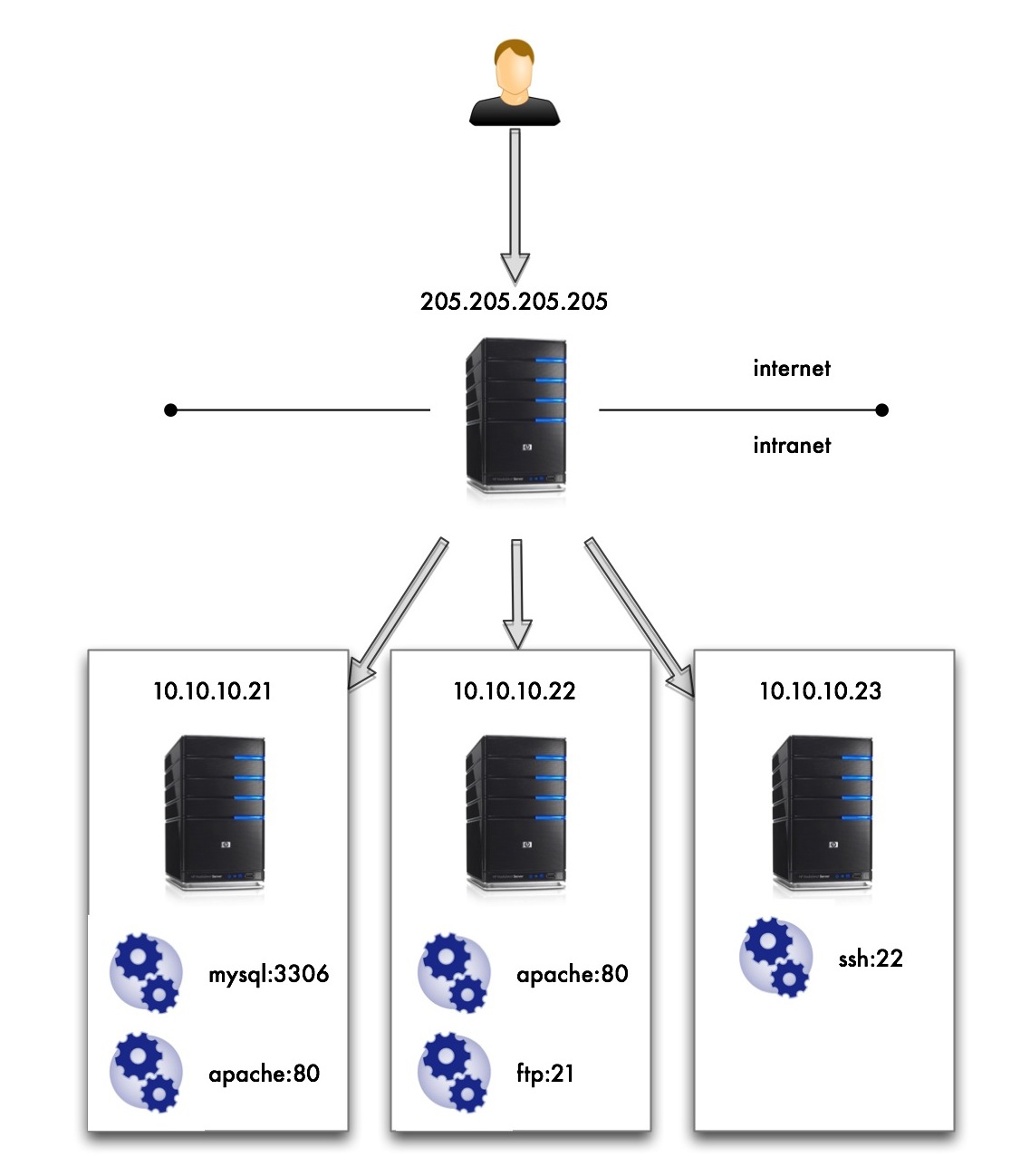
What we are going to do is what you see in the picture.

port forwarding

Here I see myself with more hair and beard without wishing to access all services of the machines on the intranet 10.10.10 .* and yet only being able to access the machine with public IP 205,205 .205.205 .

What I need is a name and this is Port Forwarding, and the implementation of this simpler than I’ve seen is made by IP Tables.

It’s going to be faster write commands to be run in order to make this work that all the talk after you have counted.

My machine with public access is the distribution of Gentoo Linux and that the examples are for this distro but should not vary much for other distros.

Install iptables (if not already )
# Emerge iptables 
We tell the kernel that allows ip-forwarding
# Echo 1> / proc/sys/net/ipv4/ip_forward 
Flash whole configuration of iptables that has default
# Iptables-F    # Iptables-t nat-F 
Allow the forward from iptables (eth0 is the public interface )
# Iptables-A FORWARD-i eth0-j ACCEPT    # Iptables-A FORWARD-o eth0-j ACCEPT 
This makes the ips are not rolling to mask the possible bypass roads and security filters for IP
# Iptables-t nat-A POSTROUTING-o eth0-j MASQUERADE 
And here at last the rules of the Port Forwarding
# Iptables-t nat-A PREROUTING-p tcp-i eth0 - dport 213,306-j DNAT - to-destination 10.10.10.21:3306    # Iptables-t nat-A PREROUTING-p tcp-i eth0 - dport 2180-j DNAT - to-destination 10.10.10.21:80    # Iptables-t nat-A PREROUTING-p tcp-i eth0 - dport 2280-j DNAT - to-destination 10.10.10.22:80    # Iptables-t nat-A PREROUTING-p tcp-i eth0 - dport 2221-j DNAT - to-destination 10.10.10.22:21    # Iptables-t nat-A PREROUTING-p tcp-i eth0 - dport 2322-j DNAT - to-destination 10.10.10.23:22 
Keep the current iptables configuration so that the rewritten failure to restart
# / Etc / init.d / iptables save 
We service iptables to boot at the start
# Rc-update add default iptables 
I think that also you have to do it
# Vim / etc / sysctl.conf 
Add / uncomment the following lines:
net.ipv4.ip_forward =  1   net.ipv4.conf.default.rp_filter =  1 
And it should work. If I leave my machine in my office and I go to:
$ Mysql-h205  205 . 205 . 205  P- 213,306 
I find the mysql of the machine 10.10.10.21 .

If I go with a browser to:
http :// 205,205 . 205 . 205 : 2280 
I encounter with the Apache of the machine 10.10.10.22 .

Port Forwarding

D-Link Port Forwarding - DIR 615 - DIR-825 - DIR-655 - DIR-628 - DIR-628

D-Link port forwarding, also known as virtual server, allows you to configure inbound Internet connections to your router to be routed to specific devices on the network.  In order for surveillance system cameras to be accessible over the Internet, your router is configured to forward requests to your surveillance DVR (standalone or Geovision) or directly to IP cameras.  The IP address that your router assigns to your DVR or to IP security cameras is a LAN (internal IP address) that can not be accessed from outside of your local network.  Port forwarding is setup to open a hole in your firewass and allow access.

These instructions are for more recent D-Link routers such as the following: DIR-615, DIR-825, DIR-655, DIR-628.  If you are looking for older model D-Link instruictions, please click here: D-Link Port Forwarding Setup.
AddThis bookmark this page for future reference
  1. Open your D-Link router's control panel by going to the IP address http://192.168.0.1/ in a web browser. You will be prompt for a password.  If you did not setup a password on your router, the dlink default password is usually blank.  Enter admin for the username and leave the password blank or enter your password.
  2. After you are logged into your router
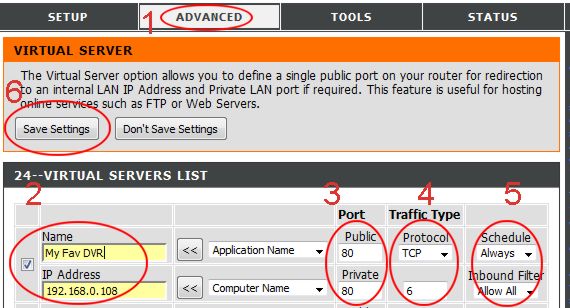
    1. click on the "Advanced" tab (#1 below).  The virtual server screen will open.

      D-link Port Forwarding
    2. Click the check box next to the first open virtual server entry and fill in the Name for this service.  This can be anything that you choose.  Also fill in the IP address of the device that you are setting up port forwarding for.
    3. Enter the port # for both the Pivate Port and Public Port.  Ports 80, 4550, and 5550 are the ports that need to be forwarded for Geovision webcamserver to work.  You need to make an entry for each port.  Most of our stand alone DVRs only use one port which should be supplied on the instructions for the particular DVR you are installing.
    4. Select "TCP" for Protocol.
    5. Seelct "Always" for Schedule, and "Allow All" for Inbound Filter.
    6. Click Save Settings.
  3. On success, the screen will display a settings saved screen
The port forwarding entry is now added.  If you need to add additional port forwrding rules, repeat the above steps.


What is my Geovision computer's IP
  1. If you do not know what the IP address is of your computer, in Windows press the start button then select Run.
  2. In the Open field of the Run window type cmd, then press OK.  A command screen will open.
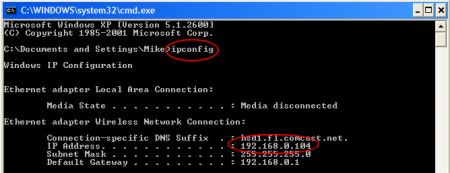
  3. On the command line type ipconfig
  4. The results should look similar to below.

    Windows - What is my IP?


bookmark this page for future reference

Tutorial: Setting Up Port Forwarding

Background Story

Bob runs a small custom office furniture company which builds awesome desks, workstations, filing cabinets and shelving. The company designs to suit, and this involves sending representatives to the offices of customers and potential customers for on-site visits.
In the early days, Bob did a lot of that running around himself, but as his business grew more successful, he was able to delegate most of that work and spend his time doing what he loves—designing unusual furniture solutions.
Bob and his three assistants are constantly churning out potential designs, and his field representatives need to be able to get his latest illustrations, floorplans, and 3D models, as well as marketing and and other documents. They need access to this stuff whenever the need arises, often when they're out of the office.
With iGet, that's easy. Bob doesn't have to train his staff how to use it, because the interface is intuitive and obvious. He doesn't have to worry about miscreants snooping on his data, because iGet uses always-on industrial-strength encryption. The only slightly tricky bit was setting up his Internet connection.

The Network Setup

Bob has a static IP address for his business DSL account, so at first it was quite simple.
(See sidebar for an additional tip for when you don't have a static IP address.)
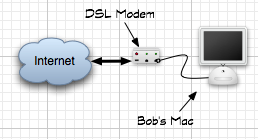
His office "network", such as it was, was just his Mac and his DSL modem:
Bob's simple network setup
Bob's simple one-Mac network, in the early days.
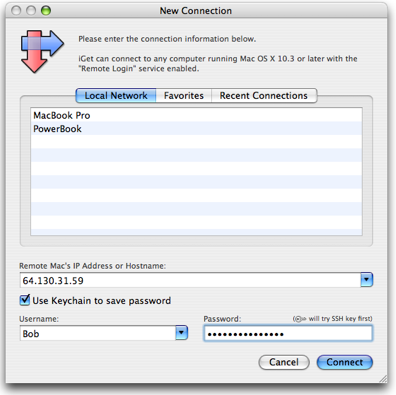
Accessing his Mac from outside the office was easy. Static IP addresses don't change, so he just typed his static IP address into iGet, entered his usernmame and password, and—boom!—he was connected and could browse his Mac, search for the files he needed, and quickly download them.
Bob using iGet to connect to his static IP address
iGet connecting to Bob's Mac via its static IP address.
As Bob's company grew and he added staff, he wanted to let them access his design files remotely as well. So, he created a user account on his Mac for each of them, and they could connect the same way he did, via the static IP.
Pretty soon, though, his staff wanted to access their own Macs remotely, too. But with only one static IP address, he had to set up a way that they could all share that Internet connection, and yet still be individually accessible. That required setting up port forwarding.

Setting Up Port Forwarding

To share his Internet connection with all the Macs in his office, Bob ordered a router from his ISP. He could have instead bought a router at his local computer store, or ordered an Airport base station from Apple.
The precise details of configuring port forwarding differ for each router, but the basic concepts do not.
Please note: We are currently in the process of updating these tutorials to cover the new iGet Mobile, as well as iGet. Most of the concepts are the same, so this tutorial may be useful in its current form. However, iGet always uses port 22, whereas iGet Mobile uses the port you specify (the default is 55555). So, when using these tutorials, iGet Mobile users should replace port 22 with whatever port iGet Mobile is configured to use.
Bob's IP address is now assigned to his router. When somebody tries to connect from the to his IP address, the router looks at the connection and decides what computer to forward the connection to. To the user, this process makes it seem that they are connecting directly to that computer.
Bob has four Macs in the office. He wants his router to be able to forward his connection to the Mac of his choice, so that he can access whichever Mac he wants. But he has only the single IP address, so every incoming connection is connecting to the same address. How can the router tell which Mac he wants to connect to?
The router figures out which Mac he wants by looking at the port number. Every Internet connection involves an IP address, and also a port number. The port number indicates the type of service being requested. For example, standard HTTP connections made by Safari use port 80, the standard port number for web servers. iGet uses port 22, the standard port for SSH connections.
Normally, most software doesn't make you deal with the port number. For example, you don't have to specify port 80 when using your web browser, because it uses that port by default. But you can specify the port in your web browser. To do so, you append a colon and the port number after the hostname or IP address.
iGet works the same way. To tell iGet to connect using a different port number than it normally would, you append a colon and the port number.
Bob is going to set up port forwarding for iGet, and while he is at it, he's going to set up port forwarding so that he can view the test web site one of his employees is creating on one of the Macs. To set this all up, he does the following:

1. Decide which port numbers will point to each Mac.

This is an arbitrary decision, and the numbers can pretty much be any valid port numbers. However, Bob has read up a little bit on the web, and he's learned that is better to use port numbers above 1024 (to avoid conflicting with other services that might be in use now or someday in the future). So he chooses 10000 as his starting number. He jots his choices down on a post-it note:
  • port 10001 goes to iGet on Mac #1
  • port 10002 goes to iGet on Mac #2
  • port 10003 goes to iGet on Mac #3
  • port 10004 goes to iGet on Mac #4
  • port 8080 goes to the test web server on Mac # 3

2. Figure out what port numbers to translate these to.

Bob will configure the router to accept connections on these non-standard port numbers that he just made up. But his Macs will expect the connections to come on the standard port. Bob doesn't want to (and doesn't know how to) tweak his Macs to listen for connections on these non-default port numbers.
Fortunately, his router will take care of that for him. When it accepts a connection on one of these weird port numbers, it will not only figure out which Mac to forward the connection to, but it will also change the port number. This way, the Mac will see the incoming connection as if it was coming on the default port. Bob has to configure his router so that it knows how to do this. He knows that the web server listens for connections on port 80, and the Mac's SSH subsystem that iGet uses listens for connections on port 22. So he fleshes out his note:
  • 64.130.31.59:10001 -> port 22 (iGet) on Mac #1
  • 164.130.31.59:10002 -> port 22 (iGet) on Mac #2
  • 64.130.31.59:10003 -> port 22 (iGet) on Mac #3
  • 64.130.31.59:10004 -> port 22 (iGet) on Mac #4
  • 64.130.31.59:8080 -> port 80 (web server) on Mac # 3

3. Give all the Macs static (unchanging) private IP addresses on the LAN.

By default, Bob's router automatically assigns private IP addresses to all his Macs. It gives the first Mac 192.168.1.10, the next one 192.168.1.11, and so on. That's convenient, but it means that each Mac's address on the local network may change from time to time.
Bob wants to make sure nothing ever changes, so he decides to give each Mac its own, unchanging private IP address. He uses the Network pane in each Mac's System Preferences application to hardcode the IP address.
First, he goes to the Network preferences pane, then selects "Built-in Ethernet" from the "Show" popup menu. This shows the detailed settings for his Ethernet network connection. (He would change his AirPort settings instead if his Mac were connected wirelessly, but it isn't.)
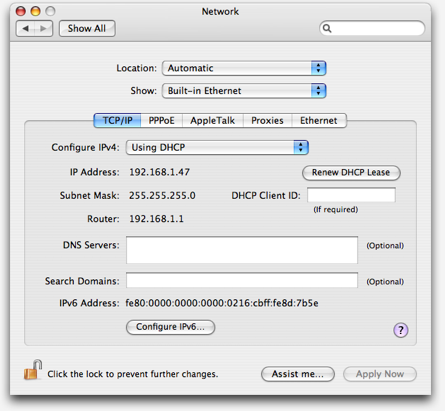
Bob's original network settings
Bob's original (default) Network preferences.
The only change he wants to make is to specify an address manually. To do that, he makes only one change: instead of "Using DHCP" in the first popup menu, he selects "Using DHCP with manual address"
Once he does this, the "IP Address" becomes editable. But the address is now "0.0.0.0", which won't work. What address should he put? Unsure, he calls his son, Jason.
"Copy the address that it shows for your router, but change the last part of the IP address," says Jason. "Start at 100, and then make the next Mac's 101, and so on. That almost always works. "
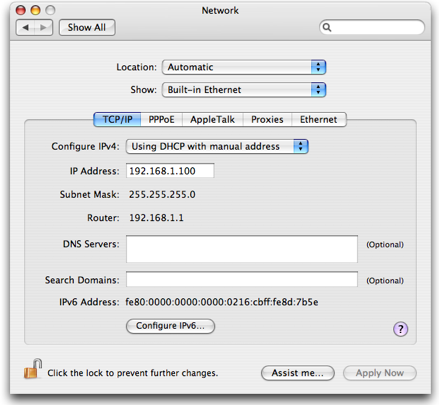
Bob's new network settings
Bob's modified Network preferences on the first Mac.
Now that Bob has given each Mac in his office its own static local IP address, he can finish his port forwarding note:
  • Public IP Address:Port -> Local IP Address:Port
  • 64.130.31.59:10001 -> 192.168.1.100:22
  • 64.130.31.59:10002 -> 192.168.1.101:22
  • 64.130.31.59:10003 -> 192.168.1.103:22
  • 64.130.31.59:10004 -> 192.168.1.104:22
  • 64.130.31.59:8080 -> 192.168.1.103:80
Or, spelled out more precisely:
Public IP Address Port Number Private LAN IP Address Port Number
64.130.31.59 10001 forwarded to 192.168.1.100 22
64.130.31.59 10002 forwarded to 192.168.1.101 22
64.130.31.59 10003 forwarded to 192.168.1.102 22
64.130.31.59 10004 forwarded to 192.168.1.104 22
64.130.31.59 8080 forwarded to 192.168.1.102 80
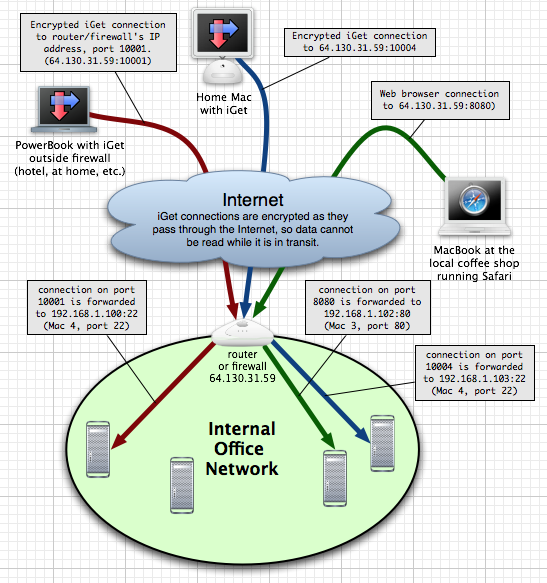
Finally, just to make sure he has everything straight in his mind, Bob fires up OmniGraffle and whips up little diagram to visualize how the port forwarding should work:
Bob's full diagram

4. Reboot everything

While not strictly necessary, Bob wants to make sure everything is configured right and will survive a reboot. If he reboots his DSL modem, router, and Mac, and can still connect, then he can be confident he didn't make any errors while configuring all the parts.
So, he reboots his gear, grabs his MacBook and walks to a nearby cafe. Using the cafe's wireless Internet connection, he opens safari and enters his static IP address, a colon, and the custom port number he uses for his test web server:
Sure, enough, he sees that his test web site loads up. The web server is running on Mac #3 back in his office; by appending the port number 8080 to the address in Safari, he has told his router "Forward this connection to Mac #3 on port 80"
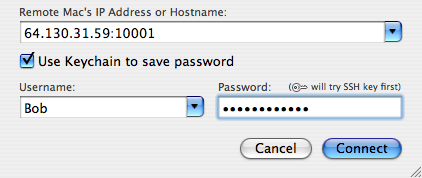
Next he fires up iGet, and tries the same trick:
Success! iGet connects and browses the files on his first Mac. Using address "64.130.31.59:10002", he connects to the next Mac, and so on. His employees can access their files, and Bob can get back to working on his latest ergonomic switchable sit/stand computer workstation.

How is Port Forwarding Configured?


Instructions for RP614, MR814, WGR101, WGR614, WGT624, WGT634U, WGU624, WGM124, or WPN824
These routers do port forwarding by assigning port numbers to a "service" that is associated with the application you want to run.
To Let an Application Use Port Forwarding
  1. Type the router's address in an Internet browser's address bar. (By default the router's address is 192.168.0.1). The Setup Wizard appears.
  2. Enter the router's username and password.
  3. Under Advanced, click Port Forwarding on the left menu bar.
  4. A Port Forwarding Screen (Varies Slightly by Router)
  5. From the Service & Game (or Service Name) pull down, select the service that you will host. The services the router knows about are listed here. If the service does not appear in the drop down, add a service as described in the next section, then return to this step.
  6. Enter the IP address of your local server in the Server IP Address box.
  7. Click Add.
  8. Click Logout to exit from router settings.
To Add a Service for These Routers
To define a service not in the Service Name list, determine what port numbers are used by the service.
  1. Click Add Custom Service.
  2. Enter the first port number in an unused Start Port box.
  3. If only one port number is to be forwarded, enter the same number in End Port. To specify a range of ports, enter the last port to be forwarded in the End Port box.
  4. Enter any name you choose for the service.
  5. Click Apply.


Instructions for DG834, DG834G, DG824M, FR114W, FM114P, FR114P, FR328S, FVL328, FVS328, FVS338, FVX538,
FWAG114, FWG114P, or FVS318v3

These routers do port forwarding by assigning port numbers to a "service" associated with the application you want to run. "Rules" are set for particular services. Rules block or allow access, based on various conditions such as the time of day and the name of the service.
To Create a New Inbound or Outbound Rule
  1. Submit the router's address in an Internet browser. (The default is 192.168.0.1).
  2. Enter the router's username and password.
  3. From the main menu, click Security > Rules.
  4. Click Add for inbound or outbound traffic, as appropriate to the application you are planning to run.
  5. Select the Service. The services the router knows about are listed in the drop down. If the service you want is not listed, add it as described in the next section.
  6. Select the Action, for example ALLOW always.
  7. For Send to LAN Server, enter the IP address of the local server. Note that this is also the IP address the computers on your LAN will access.
  8. For WAN User choose Any, or limit access to particular IP addresses.
  9. For Log selection it is reasonable to turn logs on, especially at the beginning when you are unsure of the result of the changes you are making. Later, you may want to set logs to "Never" for performance reasons.
  10. Click Apply.
As noted in user manual for some models:
  • Consider using the Dynamic DNS feature on the Advanced menu, so that external users can find your network when the DHCP lease is renewed by your ISP.
  • If your own LAN server uses DHCP, and your IPs change on rebooting, consider using the Reserved IP Address feature in the LAN IP menu.
To Add a Service for These Routers
  1. Click Security > Services > Add Custom Service.
  2. Enter any name you choose for the service.
  3. Select whether the service is to use TCP or UDP. If you are unsure, select both.
  4. Enter the lowest port number used by the service.
  5. Enter the highest port number used. If the service uses only one port number, enter the same number.
  6. Click Apply.


To Enable Port Forwarding for RM356, RH340, RH348, RT388, RT311, or RT314
  1. Click Start > Run.
  2. Type telnet 192.168.0.1.
  3. Type the password at the prompt. The default is 1234. The router menu appears.
  4. Type 15, and press Enter to select SUA Server Setup. The Port Forwarding screen appears.
  5. Enter the port number and your server's IP address.
  6. Press Enter repeatedly until the cursor comes to the last line and saves the changes.
  7. Type 99 to exit from the router settings.


To Enable Port Forwarding for FVM318 or FVS318v1 and v2
These routers do port forwarding by assigning port numbers to a "service" associated with the application you want to run.
To Let an Application Use Port Forwarding
  1. Type the router's address in an Internet browser's address bar. (By default the router's address is 192.168.0.1). The Setup Wizard appears.
  2. Enter the router's username and password.
  3. Click Advanced > Ports on the left menu bar.
  4. Click Add. The Add Service screen appears.
  5. If you click the Service Name drop down, a list of services that have been defined appears. (Some are always added by NETGEAR for your convenience by default.) If the service does not appear in the drop down, add a service as described in the next section, then return to this step.
  6. Set Action to ALLOW always.
  7. Enter the IP address of your local server in the Server IP Address box.
  8. Set WAN Users Address to Any.
  9. For the Log selection it is reasonable to turn logs on, especially at the beginning when you are unsure of the result of the changes you are making. Later, you may want to set logs to "Never" for performance reasons.
  10. Click Apply.
  11. Click Logout to exit from router settings.
To Add a Service for These Routers
  1. Determine what port numbers are used by the service.
  2. Click Security > Add Service. The Add Custom Services window appears.
  3. Enter the first port number in an unused Start Port box.
  4. If only one port number is to be forwarded, enter the same number in End Port. To specify a range of ports, enter the last port to be forwarded in the End Port box.
  5. Enter any name you choose for the service.
  6. Click Apply.


To Enable Port Forwarding for MR314 or RP114
  1. Type the router's address in an Internet browser's address bar. (By default the router's address is 192.168.0.1).
  2. Enter the router's username and password.
  3. Click Advanced > Ports on the left menu bar.
  4. Enter the first port number in an unused Start Port box.
  5. If only one port number is to be forwarded, enter the same number in End Port. To specify a range of ports, enter the last port to be forwarded in the End Port box.
  6. Enter the IP address of your local server in the Server IP Address box.
  7. Click Apply.

Port Forwarding How to

Port forwarding is a technique that you can use on router to allow the computers from Internet to access your home network’s servers that only have private IP. Sometimes it’s also call virtual server by some router As most of us only have 1 public IP that binds to cable/DSL connection at home, it’s not possible to allow remote connection from Internet to internal servers without using this technique. However if you have set up a home network with all the computers NATed behind a router, you can enable port forwarding on router to allow remote connection.
Here is how it works, when the Internet packets hit cable/DSL router with particular destination port number, the router will forward the traffic to particular internal servers based on that destination port number.
When you do this configuration on router, you need to know the ports that used by the software/server that you plan to have port forwarding, and then configure the port information and also the computer IP that will run that application/server. That’s all… Also check on the router manual for more information on how to do it.
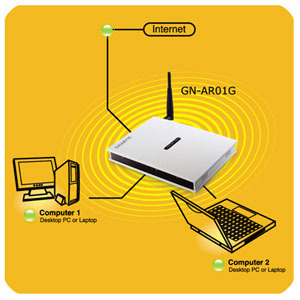
port forwarding network
Here are some examples of the port forwarding usage by implementing on Linksys WRT54G router.
Example 1:
I’ve set up a temporary web server at home. I would like my friends to access the web server. After implementation, my friends can just open IE or other web browsers and key in my Internet connection’s public IP to access it.
Web Server
LAN IP: 192.168.1.150
Port: TCP 80
web server port forwarding
Example 2:
I would like to set up a Dune 2000 game server, so that can play the game with my friends that stay nearby. After implementation, I requested my friends to connect to my Internet connection’s public IP from his Dune 2000 game console to join the network game over Internet.
Dune 2000 Game Server
LAN IP: 192.168.1.160
Port: TCP 4000, TCP 1140-1234
game port forwarding
Example 3:
I need my friend’s help to make Remote Desktop connection to my computer to do some printer troubleshooting. After implementation, he can make Remote Desktop connection by pointing to my Internet connection’s public IP.
Remote Desktop Enabled Computer
LAN IP: 192.168.1.10
Port: TCP 3389
RDP remote desktop port forwarding

D-Link calls Port Fowarding as "Virtual Server"

Advanced, optional
Port Forwarding (D-Link calls Port Fowarding as "Virtual Server")

Infrastructure Requirement:
If you have static or quasi-static IP and the "User Policy" of your ISP allows it, you can run an in-house web or mail servers. g
Infrastructure obstacles:
Some paranoia ISPs don't allow you to run any servers, they change the IP address frequently or block the TCP/IP ports on their network routers g , it is impossible for the outside world to reach you. The solution is to change to a more user friendly ISP or wait 10 years for these paranoia ISP kids to mature.  Some ISPs give you an IP address within the RFC1918 "private block", in that case, you will never be able to run in-house servers. g g
Disclaimer
port-forward
Set the IP address of above "server" to a "static IP", e.g. 192.168.10.4
(subnet mask = 255.255.255.0,  gateway=192.168.10.1,  DNS see this page)
Optional Advanced:
According to Seawall's documentation, you can run a Microsoft PPTP-VPN server in-house behind this LRP-Seawall firewall. However, you need to add a module called ipfwd, see this page on how to add ipfwd module. I have not tested a Microsoft PPTP-VPN server behind this LRP to see if it really does work or not. Several people reported it does work by setting the VPN server to have all IP addresees merged into the same NIC card. Here are some tips from Microsoft on how to set up a PPTP server pdfbehind a NAT firewall. The LRP on this site is a NAT firewall.
caution Use of ftp or telnet is unsafe because of the unencrypted password of the ftp and telnet protocols. Also, due to the nature of the ftp protocol, ftp clients behind some brands of corporate firewalls will have trouble accessing your ftp server behind LRP firewall.
caution Some ISP use proxy server to intercept all your network traffic, in that case, despite the appearance that you have an "externally accessible" IP address, you cannot run servers in-house. Check with your local friends who use the same ISP as yours, to find out if that applies in your area. Or go to www.analogx.com to download a free, instant web server (look under software, network, Simple-Server) and install it at your friends computer and see if you can surf to his/her web site. You need to use the IP notation such as http://24.2.54.23/    See this page on how to find out his/her IP address. After that test, un-install the analogx web server on your friends computer.
Disadvantage: sad Alice, Bob and Charlie will have to use http://192.168.10.4/ to access your
own www server, instead of the usual http://www.mydomain.com/  this can be very annoying.

caution Opening of any port must be done with care and deliberations. Every port you open (port forward) reduces the overall safety of the firewall.
If you want to run a web server in-house behind firewall, instruct Seawall to "port forward" as follows:
login as root, 3-package settings, 5-Seawall, 3-servers, add one line
tcp   80   0.0.0.0/0   192.168.10.4
make sure there is a blank line before the << EOF >> marker
Ctrl-S and Enter to save. Ctrl-C and (q) twice, (B) for backup, choose Seawall.
Go back to the # prompt and type (there is no need to reboot the LRP)
# seawall restart
 g
For convenience, use a DNS service such as express.powerdns.net or equivalent.
First, find out what your outside-world IP address is.
Type ifconfig eth0 on the LRP, for example, IP address shows 24.113.118.30
To confirm that, use a web-based service that shows what your IP address is, for example,
http://www.privacy.nb.ca/  or  http://network-tools.com/  or
http://www.net.princeton.edu/cgi-bin/show_my_ip.pl
above web method does not work if your web browser is set to use "proxy", to find out:
Microsoft IE web browser: Tools...Options....Connections....LAN settings
Netscape web browser: Edit...Preferences...Advanced...Proxies
Go to express.powerdns.net and create an A-record, e.g., zebragreenhouse.powerdns.net and set the IP address of zebragreenhouse.powerdns.net to 24.113.118.30
The world can http://zebragreenhouse.powerdns.net/ and see your web site ! g g 
You internal users will have to use http://192.168.10.4/  g
Have your own domain name g
If you purchase a domain name (by paying a "Domain Registrar",), you have several choices:
(1) If you register your domain with the expensive and overpriced registrars, they generally include DNS service, login to their DNS "control panel" to make www.yourdomain.com pointing to IP address 24.113.118.30 (geeky phrase is "create a A-record"). One registrar that is not too expensive but includes DNS service is www.domainfactory.com
(2) Use an ultra-economical registrar (e.g.g www.godaddy.com ) AND a free DNS service such as g express.powerdns.com or www.zoneedit.com or dns.widge.net
On the DNS server, create an "A" record and a "MX" record to point to 24.113.118.30
(3) You can find some place, perhaps your own home or your office (if your ISP allows it) with a static or quasi static IP address, run your own DNS server. You may want to use express.powerdns.com as a backup server. Some big-name, expensive, overpriced, registrars have broken software that do not allow you to add or change or delete the IP address of your primary and secondary DNS servers. This is a very big problem if your IP address is occasionally changed by your cable modem or ADSL company!
Fortunately, g www.godaddy.com  g allows you the freedom to change the IP address of your primary and secondary DNS server and their software correctly "updates" your changes to the appropriate "top level name servers" in a timely manner, see this page.
Now you can run a web server (and an email server) on 192.168.10.4 and the outside world can g http://www.yourdomain.com  and send email to g boss@yourdomain.com
This is what a small business needed:
A domain name for recognition, a simple in-house, light duty web server and an in-house email server. The in-house web server can be a modest hardware running any version of Linux (most Linux includes Apache web server and some form of email server), or a Windows 2000/XP g platform with apache-win32 as the web server.
g g
Recent policy changes at AOL and many ISP make their email servers reject email sent from
"dynamic IP" and "residential IP" addresses, despite your servers are non-spamming. This has
very serious implications to SOHO who want to free themselves from the restrictions of their
ISP's mail hosting services. The work around is use the ISP's email server for sending
mails (SMTP server), and use an in-house email server (such as exim) for receiving in-coming mails.
Below is how to edit the file c:\cygwin\etc\exim.conf so that exim will not send mail directly to
the outside world, instead, it sends to your ISP's SMTP server and then your ISP's SMTP server
will send the mail again, so the outside world thinks it is coming from your ISP's.
(For exim3 only)
Open c:\cygwin\etc\exim.conf with EditpadLite, find the section that says "ROUTERS CONFIGURATION"
below that line, add 4 lines:
your_friendly_isp:
driver = domainlist
transport = remote_smtp
route_list = * smtp.your_isp.net bydns_a

substitute smtp.your_isp.net with the SMTP host name of your ISP.
If you want to run web server, e-mail server and dns server in-house behind LRP firewall, instruct Seawall to "port forward" as follows:
login as root, 3-package settings, 5-Seawall, 3-servers, add several lines
tcp  80  0.0.0.0/0   192.168.10.4
tcp  25  0.0.0.0/0   192.168.10.4
tcp  110  0.0.0.0/0  192.168.10.4
tcp  143  0.0.0.0/0  192.168.10.4
   (you only need this line if you run an IMAP server)
tcp  53  0.0.0.0/0  192.168.10.4
udp 53  0.0.0.0/0  192.168.10.4
make sure there is a blank line before the << EOF >> marker
Ctrl-S and Enter to save. Ctrl-C and (q) twice, (B) for backup, choose Seawall.
Go back to the # prompt and type (there is no need to reboot the LRP)
# seawall restart If you want to run a secure web server (e.g. apache-ssl) in-house behind firewall, instruct Seawall to "port forward" as follows:
login as root, 3-package settings, 5-Seawall, 3-servers, add several lines
tcp  443  0.0.0.0/0   192.168.10.4
make sure there is a blank line before the << EOF >> marker
Ctrl-S and Enter to save. Ctrl-C and (q) twice, (B) for backup, choose Seawall.
Go back to the # prompt and type (there is no need to reboot the LRP)
# seawall restart

If you want to run NetMeeting behind firewall to receive calls, instruct Seawall to "port forward" as follows:  (there is no need to do below if you only initiate calls).
See Microsoft knowledge base Q158623 g
login as root, 3-package settings, 5-Seawall, 3-servers, add several lines
tcp  389  0.0.0.0/0   192.168.10.4
tcp  522  0.0.0.0/0  192.168.10.4
tcp  1503  0.0.0.0/0  192.168.10.4
tcp  1720  0.0.0.0/0  192.168.10.4
tcp  1731  0.0.0.0/0  192.168.10.4
make sure there is a blank line before the << EOF >> marker
Ctrl-S and Enter to save. Ctrl-C and (q) twice, (B) for backup, choose Seawall.
Go back to the # prompt and type (there is no need to reboot the LRP)
# seawall restart

If you want to run pcAnywhere behind firewall to receive calls, instruct Seawall to "port forward" as follows:  (there is no need to do below if you only initiate calls)
login as root, 3-package settings, 5-Seawall, 3-servers, add two lines
tcp  5631  0.0.0.0/0  192.168.10.4
udp 5632  0.0.0.0/0  192.168.10.4
make sure there is a blank line before the << EOF >> marker
Ctrl-S and Enter to save. Ctrl-C and (q) twice, (B) for backup, choose Seawall.
Go back to the # prompt and type (there is no need to reboot the LRP)
# seawall restart

If you want to run MSN Game Zone behind firewall, instruct Seawall to "port forward" as follows: (the settings are sub-optimal because I don't know whether the proper ports are tcp or upd, I open both for now) (thanks to Dean Ireland of Calgary)
login as root, 3-package settings, 5-Seawall, 3-servers, add lines
tcp   6677  0.0.0.0/0  192.168.10.4
tcp  28800:29000  0.0.0.0/0  192.168.10.4
make sure there is a blank line before the << EOF >> marker
Ctrl-S and Enter to save. Ctrl-C and (q) twice, (B) for backup, choose Seawall.
Go back to the # prompt and type (there is no need to reboot the LRP)
# seawall restart
g A large block of ports are open, this reduces the effectiveness of your firewall. If you want to run MSN Game Zone DX behind firewall, tell Seawall to "port forward" as follows: (the settings are sub-optimal because I don't know whether the proper ports are tcp or upd, I open both for now) (thanks to Dean Ireland of Calgary)
login as root, 3-package settings, 5-Seawall, 3-servers, add lines
tcp   47624  0.0.0.0/0  192.168.10.4
tcp   2300:2400  0.0.0.0/0  192.168.10.4
make sure there is a blank line before the << EOF >> marker
Ctrl-S and Enter to save. Ctrl-C and (q) twice, (B) for backup, choose Seawall.
Go back to the # prompt and type (there is no need to reboot the LRP)
# seawall restart
Also see Microsoft Knowledge Base Q159031
g A large block of ports are open, this reduces the effectiveness of your firewall.

If you have 2 static IP addresses, you can use one IP address for the firewall and one IP address for the server (outside the firewall). Note that the server is "exposed" to the outside world without the LRP firewall protection.
There is no need to configure any "port forwarding" on the LRP in this configuration.
2-IP-address

caution If you set up a email server in-house, make absolutely sure you add anti-spam measures (aka block relays) or else spammers will quickly find you and use your email server to send millions and billions of junk mails through your email server (they send continuously, non-stop, until your cable modem company or ADSL company finds out, or spam victims complain to your ISP, then your ISP will cut your wire!)
 

Thursday, April 19, 2012

NTLDR is missing error Fix


This tutorial will try and help you resolve the NTLDR is missing error when starting your computer. You will need an original or backup XP CD to complete this fix. Typical Error Messages. NTLDR is Missing Press any key to restart
Boot: Couldn't find NTLDR Please insert another disk NTLDR is missing Press Ctrl Alt Del to Restart Causes of this error. There are a few reasons why this error appears but the most common is a corrupt file that XP is unable to read from the hard drive. Before using any of the solution please ensures you have no floppy disks in your drive and there are no USB memory sticks attached to the computer as this may be causing the error. Solution 1 - Check your hard drive for errors and repair them.
1. Insert you XP CD into your CD\DVD drive.
2. Restart your computer.
3. When prompted to "Press any key to boot from the CD" press any of the keyboard keys except "space" to start the XP CD boot.
4. If you do not see the "Press any key to boot from the CD" message you will need to set your computer to boot from the CD before the hard drive, a tutorial on this can be found on this site.
5. The computer will now boot into the blue "Windows Setup" screen, do not worry none of your files are being overwritten at this time.
6. The next screen will display "Welcome to setup" and you will be given three choices, please press "R" to "Repair a Windows XP installation".
7. The screen will now turn to black and you will be asked "Which windows installation would you like to log onto", press "1" then "Enter" to log on.
8. You may now be asked to enter the administrator password enter it here if you have one otherwise press "Enter" to continue.
9. The screen will now display "C:\WINDOWS>" please enter the following command to start checking your hard drive. "chkdsk /p /r" then press "Enter".
10. This may take some time so now is probably a good time to put the kettle on!

Wednesday, April 11, 2012

WPA (Wi-Fi Protected Access) is an interim standard by the WiFi Alliance to comply with the security protocol designed for wireless security. WPA will most likely be rolled into an eventual IEEE 802.11i standard. This protocol was an outcome of numerous severe flaws researchers had discovered in the preceding wireless security system called Wired Equivalent Privacy (WEP).


WPA (W-Fi Protected Access) Modes of Operations

WPA (Wi-Fi Protected Access) features two very different modes of operation:
WPA Enterprise Mode WPA PSK (Pre-Shared Key) Mode
Requires an authentication server Does not require an authentication server
Uses RADIUS protocols for authentication and key distribution Shared secret is used for authentication
Centralizes management of user credentials Device-oriented management of user credentials
The PSK (Pre-Shared Key) Mode of WPA is vulnerable to the same risks as any other shared password system, such as dictionary attacks. PSK Mode also suffers from the same key management difficulties as any system where the key is shared among multiple users, such as the difficulties in removing a user once access has been granted.
Wi Fi Protected Access WPA (Wi Fi Protected Access)
The Enterprise Mode of WPA benefits from the maturity of the RADIUS architecture — but it requires a RADIUS server. This is not something that will benefit most home users.
Security Enhancements in WPA (Wi-Fi Protected Access)
WPA provides additional security by:
  • Requiring authentication using 802.1X
  • Requiring re-keying using TKIP
  • Augmenting the ICV (Integrity Check Value) with a MIC (Message Integrity Check), to protect the header as well as the payload
  • Implementing a frame counter to discourage replay attacks

WPA2

In addition to WPA, some vendors also implement WPA2, which allows the use of AES instead of RC4. WPA2 necessitates certification and testing by the Wi-Fi Alliance. WPA2 makes use of the compulsory elements of 802.11i. It principally establishes a fresh AES-based algorithm, CCMP, which is believed to be totally secure.

How to change existing wireless

Before you can access the Wireless Access Point device, you must first determine which IP address has been assigned. To identify what the IP address is:
  1. Open your web browser.
  2. Type http://192.168.2.1 in the address bar, and then press Enter. If you are prompted to enter in a username and password, these are set to the following defaults:
    • Username: admin
    • Password: admin
  3. Select Device Table from the left menu. In this device table, note down the IP address indicated for WAP610N. You will need this IP address to continue.
  4. Device table
  5. Close and then re-open your web browser.
  6. Type http://192.168.2.X where X is the last number in the IP address of the WAP610N device. Then press Enter. If you are prompted to enter in a username and password, these are set to the following defaults:
    • Username: admin
    • Password: admin
  7. If you’ve changed the administrative password, you must use this one in place of “admin” for the password.
  8. Click the Wireless Tab, then select Basic Wireless Settings.
There are two ways to configure the Wireless Access Point device’s settings:
  • Manual
  • WiFi Protected Setup
To manually configure your wireless network:
  1. For the Configuration View select Manual.
  2. Wireless settings
  3. Ensure the following settings are used:
    • Wireless Band: 2.4 GHz
    • Network Mode: Mixed
    • Channel Width: 40 MHz only
  4. Click Save Settings.
To configure your wireless network using WiFi Protected Setup:
If you have client devices, such as wireless adapters that support WiFi Protected Setup then you can use this feature to configure wireless security for your network.
There are 3 methods available, use the method that applies to the client device you are configuring:
  1. Use WiFi Protected Setup button:
    • Click or press the WiFi Protected Setup button on the client device.
    • Within a few minutes, click the WiFi Protected Setup button on the setup screen that appears.
    • After the client device has been configured, click OK.
    • The WiFi Protected Setup Status, Wireless Band, Network Name (SSID), and Security method are displayed at the bottom of the screen.
  2. Enter WiFi Protected Setup PIN from client device:
    Use this method if your client device has a WiFi Protected Setup PIN number.
    • Enter the PIN number in the field on the screen that appears.
    • Click Register.
    • After the client device has been configured, click OK. Then refer back to your client device or its documentation for further instructions.
    • The WiFi Protected Setup Status, Wireless Band, Network Name (SSID), and Security method are displayed at the bottom of the screen.
  3. Enter WiFi Protected Setup PIN from access point on client device
    Use this method if your client device requests the Access Point’s PIN number.
    • On the client’s WiFi Protected Setup screen, enter the PIN number listed on the Access Point’s WiFi Protected Setup screen. Then click Register or the appropriate button. (The PIN number is also listed on the label on the bottom of the Wireless Access Point device).
    • After the client device has been configured, click OK. Then refer back to your client device or its documentation for further instructions.
    • The WiFi Protected Setup Status, Wireless Band, Network Name (SSID), and Security method are displayed at the bottom of the screen.

How To Secure Your Wireless Network Connection

I was watching some program the other day and was surprised to find out that many people never secure their wireless networks. Some don’t know about it, others just ignore it… If you have a wireless network set up at home make sure it’s secured. When you have an unsecured wireless network even people with a basic computer knowledge can connect to your network, use your connection for downloading illegal material and easily see every single things you do on the internet.
Video below is a perefect example of why you should always secure your wireless network connection.
If you’re a regular MakeUseOf reader I am pretty sure you are already aware of it. So my only suggestion to you would be to set your wireless to use WPA instead of WEP encryption. As for the folks who are not really sure if their wireless is secured, read on for a quick how to guide.

Securing Your Router and Wireless Network Connection

Go to ‘Network Connections’ and search for Wireless Networks in range. This should get you all available wireless networks in the area.
how to secure wireless router
Now you should be able to see whether the wireless network you’re “Connected” to is secure or not. If it’s secure, the only thing you need to do is check if it is using WPA or WEP encryption method. Right click on the network, select ‘Properties’ and then Look for ‘Encryption Type’


Secure Your Wireless Network

(Please note simply changing the encryption type from properties won’t work. You will need to access your router and change security settings for the wireless access. So just read on.)
On the other hand if your wireless network is unsecured then here is what you need to do to secure it.
1. Access your wireless router: In most cases you should be able to access your router by simply typing 192.168.0.1 IP address into your browser’s address bar. In case it doesn’t work for you then go to this website. Here you can get both the default IP and default username and password details for your router. You only need to know it’s model.

Port forwarding


This page and What is NAT provide a general explanation of reachability issues, if you just want to fix them, have a look at NAT problem

Contents

[hide]

[edit] Yellow Smileys

Smiley faces (Torrent Health icons) provide info on your torrents. The yellow smiley File:No remote.gif indicates that while your system can initiate connections with other peers (known as local connections, or L in the torrent's Details page, Peers tab, you cannot receive connections initiated from other peers (known as remote connections, or R). This is almost certainly caused by incorrectly forwarded ports from your router or firewall. You can see the L's and R's in the Details tab of your individual torrent. If you see only L's, you probably have a Port Forwarding problem. Green smileys Image:HealthOk.gif mean that you have both L and R connections to peers and are connected to the tracker. For more information on what every smiley means, click Help > About Health.
There are other possible causes for a yellow smiley. If you see a green smiley or have seen one with the same router/firewall configuration, then port forwarding may not be the culprit. Run the Help > NAT/Firewall test.
Make also sure that you have allowed "Incoming connection" as a peer source in Connection options. Disabling the optios tells Vuze to discard connections attempts from other bittorrent users, and then you would not be reachable any more.

[edit] Ports

When you connect to the internet, there are different channels that data travels by. Computers usually handle this perfectly in the background via ports, identified by numbers. For example, MSN protocol usually uses ports 6891-6900. Please see Select port for Vuze for information on which ports to use. Check out Tantalo , the official IANA port list or Wikipedia to find out more about ports.
Azureus listens to one port for torrents (defined in Connection options) and another for the embedded tracker. Two protocols, TCP and UDP, use the same port, unless specified otherwise. Thus, you need to forward one listening port for Azureus and tick both the TCP and the UDP boxes, or make an extra rule, one for each protocol.
The only time you will notice the ports is when they are closed; no data is transmitted and you get error messages like "NAT Error." This usually happen because of firewalls and routers.
Note: When you initiate the outgoing connection yourself (e.g. with web browsing), the router automatically configures a temporary forwarding for the random port that your web browser uses for that connection. But programs like Vuze, which can also accept incoming connections from others, the router does not automatically know the right port forwarding.

[edit] NAT

NAT stands for Network Address Translation. The network, which includes your router and computer, needs to translate the Internet Protocol address of your router (with its own IP address) to and from the IP address of your computer (with its own IP address). The router directs traffic to different computers connected to it and can be configured to protect you from specified traffic. It can use port forwarding to redirect data packets to a different address. The address known by the outside world (Wider Area Network, or WAN) is the IP address of your router, which redirects packets according to your instructions to your Local Area Network (LAN) address, or the local IP address of your computer.
Image:PortForwarding.gif
Vuze has built-in NAT testing logic. When you get the "NAT Error," your modem/router is not set up correctly. This is generally due to your router not forwarding the proper ports. You may read more advice on how to configure port fowarding on the NAT problem page. What is NAT may help too.

[edit] Double router port forwarding

If you have both a smart NATting modem and a NATting router/basestation, or two NAT routers, you may need to configure port forwarding in both of them. You need to set port forwarding at each router all the way from "public internet" upto your PC, always setting the forward to the next device inwards (from smart modem to router, and from router to PC). See an explanation here: http://www.portforward.com/help/doublerouterportforwarding.htm
A clear sign of the need for double router port forwarding is if your router has a private IP address also on its WAN/ADSL/internet side (whatever it is called in router status/config screens). "Private" IP address ranges are 10.x.x.x, 172.x.x.x and 192.168.x.x, and IP addresses inside those areas are different from other addresses, as they can not be reached from outside without port forwarding.
Image:DoubleRouterPortForwarding.png

[edit] Mobile/3G/satellite connections

Very often the various mobile internet connections, either through 3G/mobile dongles or satellite dishes, have been limited by the ISPs network architecture to only have private IP addresses.
If your "outermost" device, e.g. the 3G modem, has a private IP address (10.x.x.x, 172.16-31.x.x and 192.168.x.x) in its config/status screens as WAN/internet address, then it has been given by ISP's network and there isn't much you can do. As you have no config access to ISPs routers, you might have to live with the yellow smileys and the NAT problem.
  • Note: Vuze NAT test will not find this out, as it will always show the first real public IP address it reaches. In the case of mobile dongles with private addresses, the shown IP address is probably a router somewhere at the ISP.

Saturday, April 7, 2012

accessing an intranet machines from a single machine service.

The networks are jealous of customers and usually we can only access the machines on your network from within the network itself. What comes to be known as an intranet.

But many of my maintenance tasks require access to multiple machines from a move to the intranet and client do not see a feasible option, nor in line with our times.

One solution I liked most is to ask a customer to access only a single machine with public IP address.

To provide security can be configured so that only they can be accessed from the IP address of your office, and to provide flexibility, which also can be accessed from the IP address of your server in a datacenter. Anyway this whole paragraph you can skip if there is not much problem with safety.

The machine with public IP mole that is linux, more than anything because if it is not because we do not need to keep reading because the rest of the article implied that premise.

What we are going to do is what you see in the picture.

port forwarding

Here I see myself with more hair and beard without wishing to access all services of the machines on the intranet 10.10.10 .* and yet only being able to access the machine with public IP 205,205 .205.205 .

What I need is a name and this is Port Forwarding, and the implementation of this simpler than I’ve seen is made by IP Tables.

It’s going to be faster write commands to be run in order to make this work that all the talk after you have counted.

My machine with public access is the distribution of Gentoo Linux and that the examples are for this distro but should not vary much for other distros.

Install iptables (if not already )
# Emerge iptables 
We tell the kernel that allows ip-forwarding
# Echo 1> / proc/sys/net/ipv4/ip_forward 
Flash whole configuration of iptables that has default
# Iptables-F    # Iptables-t nat-F 
Allow the forward from iptables (eth0 is the public interface )
# Iptables-A FORWARD-i eth0-j ACCEPT    # Iptables-A FORWARD-o eth0-j ACCEPT 
This makes the ips are not rolling to mask the possible bypass roads and security filters for IP
# Iptables-t nat-A POSTROUTING-o eth0-j MASQUERADE 
And here at last the rules of the Port Forwarding
# Iptables-t nat-A PREROUTING-p tcp-i eth0 - dport 213,306-j DNAT - to-destination 10.10.10.21:3306    # Iptables-t nat-A PREROUTING-p tcp-i eth0 - dport 2180-j DNAT - to-destination 10.10.10.21:80    # Iptables-t nat-A PREROUTING-p tcp-i eth0 - dport 2280-j DNAT - to-destination 10.10.10.22:80    # Iptables-t nat-A PREROUTING-p tcp-i eth0 - dport 2221-j DNAT - to-destination 10.10.10.22:21    # Iptables-t nat-A PREROUTING-p tcp-i eth0 - dport 2322-j DNAT - to-destination 10.10.10.23:22 
Keep the current iptables configuration so that the rewritten failure to restart
# / Etc / init.d / iptables save 
We service iptables to boot at the start
# Rc-update add default iptables 
I think that also you have to do it
# Vim / etc / sysctl.conf 
Add / uncomment the following lines:
net.ipv4.ip_forward =  1   net.ipv4.conf.default.rp_filter =  1 
And it should work. If I leave my machine in my office and I go to:
$ Mysql-h205  205 . 205 . 205  P- 213,306 
I find the mysql of the machine 10.10.10.21 .

If I go with a browser to:
http :// 205,205 . 205 . 205 : 2280 
I encounter with the Apache of the machine 10.10.10.22 .

Port Forwarding

D-Link Port Forwarding - DIR 615 - DIR-825 - DIR-655 - DIR-628 - DIR-628

D-Link port forwarding, also known as virtual server, allows you to configure inbound Internet connections to your router to be routed to specific devices on the network.  In order for surveillance system cameras to be accessible over the Internet, your router is configured to forward requests to your surveillance DVR (standalone or Geovision) or directly to IP cameras.  The IP address that your router assigns to your DVR or to IP security cameras is a LAN (internal IP address) that can not be accessed from outside of your local network.  Port forwarding is setup to open a hole in your firewass and allow access.

These instructions are for more recent D-Link routers such as the following: DIR-615, DIR-825, DIR-655, DIR-628.  If you are looking for older model D-Link instruictions, please click here: D-Link Port Forwarding Setup.
AddThis bookmark this page for future reference
  1. Open your D-Link router's control panel by going to the IP address http://192.168.0.1/ in a web browser. You will be prompt for a password.  If you did not setup a password on your router, the dlink default password is usually blank.  Enter admin for the username and leave the password blank or enter your password.
  2. After you are logged into your router
    1. click on the "Advanced" tab (#1 below).  The virtual server screen will open.

      D-link Port Forwarding
    2. Click the check box next to the first open virtual server entry and fill in the Name for this service.  This can be anything that you choose.  Also fill in the IP address of the device that you are setting up port forwarding for.
    3. Enter the port # for both the Pivate Port and Public Port.  Ports 80, 4550, and 5550 are the ports that need to be forwarded for Geovision webcamserver to work.  You need to make an entry for each port.  Most of our stand alone DVRs only use one port which should be supplied on the instructions for the particular DVR you are installing.
    4. Select "TCP" for Protocol.
    5. Seelct "Always" for Schedule, and "Allow All" for Inbound Filter.
    6. Click Save Settings.
  3. On success, the screen will display a settings saved screen
The port forwarding entry is now added.  If you need to add additional port forwrding rules, repeat the above steps.


What is my Geovision computer's IP
  1. If you do not know what the IP address is of your computer, in Windows press the start button then select Run.
  2. In the Open field of the Run window type cmd, then press OK.  A command screen will open.
  3. On the command line type ipconfig
  4. The results should look similar to below.

    Windows - What is my IP?


bookmark this page for future reference

Tutorial: Setting Up Port Forwarding

Background Story

Bob runs a small custom office furniture company which builds awesome desks, workstations, filing cabinets and shelving. The company designs to suit, and this involves sending representatives to the offices of customers and potential customers for on-site visits.
In the early days, Bob did a lot of that running around himself, but as his business grew more successful, he was able to delegate most of that work and spend his time doing what he loves—designing unusual furniture solutions.
Bob and his three assistants are constantly churning out potential designs, and his field representatives need to be able to get his latest illustrations, floorplans, and 3D models, as well as marketing and and other documents. They need access to this stuff whenever the need arises, often when they're out of the office.
With iGet, that's easy. Bob doesn't have to train his staff how to use it, because the interface is intuitive and obvious. He doesn't have to worry about miscreants snooping on his data, because iGet uses always-on industrial-strength encryption. The only slightly tricky bit was setting up his Internet connection.

The Network Setup

Bob has a static IP address for his business DSL account, so at first it was quite simple.
(See sidebar for an additional tip for when you don't have a static IP address.)
His office "network", such as it was, was just his Mac and his DSL modem:
Bob's simple network setup
Bob's simple one-Mac network, in the early days.
Accessing his Mac from outside the office was easy. Static IP addresses don't change, so he just typed his static IP address into iGet, entered his usernmame and password, and—boom!—he was connected and could browse his Mac, search for the files he needed, and quickly download them.
Bob using iGet to connect to his static IP address
iGet connecting to Bob's Mac via its static IP address.
As Bob's company grew and he added staff, he wanted to let them access his design files remotely as well. So, he created a user account on his Mac for each of them, and they could connect the same way he did, via the static IP.
Pretty soon, though, his staff wanted to access their own Macs remotely, too. But with only one static IP address, he had to set up a way that they could all share that Internet connection, and yet still be individually accessible. That required setting up port forwarding.

Setting Up Port Forwarding

To share his Internet connection with all the Macs in his office, Bob ordered a router from his ISP. He could have instead bought a router at his local computer store, or ordered an Airport base station from Apple.
The precise details of configuring port forwarding differ for each router, but the basic concepts do not.
Please note: We are currently in the process of updating these tutorials to cover the new iGet Mobile, as well as iGet. Most of the concepts are the same, so this tutorial may be useful in its current form. However, iGet always uses port 22, whereas iGet Mobile uses the port you specify (the default is 55555). So, when using these tutorials, iGet Mobile users should replace port 22 with whatever port iGet Mobile is configured to use.
Bob's IP address is now assigned to his router. When somebody tries to connect from the to his IP address, the router looks at the connection and decides what computer to forward the connection to. To the user, this process makes it seem that they are connecting directly to that computer.
Bob has four Macs in the office. He wants his router to be able to forward his connection to the Mac of his choice, so that he can access whichever Mac he wants. But he has only the single IP address, so every incoming connection is connecting to the same address. How can the router tell which Mac he wants to connect to?
The router figures out which Mac he wants by looking at the port number. Every Internet connection involves an IP address, and also a port number. The port number indicates the type of service being requested. For example, standard HTTP connections made by Safari use port 80, the standard port number for web servers. iGet uses port 22, the standard port for SSH connections.
Normally, most software doesn't make you deal with the port number. For example, you don't have to specify port 80 when using your web browser, because it uses that port by default. But you can specify the port in your web browser. To do so, you append a colon and the port number after the hostname or IP address.
iGet works the same way. To tell iGet to connect using a different port number than it normally would, you append a colon and the port number.
Bob is going to set up port forwarding for iGet, and while he is at it, he's going to set up port forwarding so that he can view the test web site one of his employees is creating on one of the Macs. To set this all up, he does the following:

1. Decide which port numbers will point to each Mac.

This is an arbitrary decision, and the numbers can pretty much be any valid port numbers. However, Bob has read up a little bit on the web, and he's learned that is better to use port numbers above 1024 (to avoid conflicting with other services that might be in use now or someday in the future). So he chooses 10000 as his starting number. He jots his choices down on a post-it note:
  • port 10001 goes to iGet on Mac #1
  • port 10002 goes to iGet on Mac #2
  • port 10003 goes to iGet on Mac #3
  • port 10004 goes to iGet on Mac #4
  • port 8080 goes to the test web server on Mac # 3

2. Figure out what port numbers to translate these to.

Bob will configure the router to accept connections on these non-standard port numbers that he just made up. But his Macs will expect the connections to come on the standard port. Bob doesn't want to (and doesn't know how to) tweak his Macs to listen for connections on these non-default port numbers.
Fortunately, his router will take care of that for him. When it accepts a connection on one of these weird port numbers, it will not only figure out which Mac to forward the connection to, but it will also change the port number. This way, the Mac will see the incoming connection as if it was coming on the default port. Bob has to configure his router so that it knows how to do this. He knows that the web server listens for connections on port 80, and the Mac's SSH subsystem that iGet uses listens for connections on port 22. So he fleshes out his note:
  • 64.130.31.59:10001 -> port 22 (iGet) on Mac #1
  • 164.130.31.59:10002 -> port 22 (iGet) on Mac #2
  • 64.130.31.59:10003 -> port 22 (iGet) on Mac #3
  • 64.130.31.59:10004 -> port 22 (iGet) on Mac #4
  • 64.130.31.59:8080 -> port 80 (web server) on Mac # 3

3. Give all the Macs static (unchanging) private IP addresses on the LAN.

By default, Bob's router automatically assigns private IP addresses to all his Macs. It gives the first Mac 192.168.1.10, the next one 192.168.1.11, and so on. That's convenient, but it means that each Mac's address on the local network may change from time to time.
Bob wants to make sure nothing ever changes, so he decides to give each Mac its own, unchanging private IP address. He uses the Network pane in each Mac's System Preferences application to hardcode the IP address.
First, he goes to the Network preferences pane, then selects "Built-in Ethernet" from the "Show" popup menu. This shows the detailed settings for his Ethernet network connection. (He would change his AirPort settings instead if his Mac were connected wirelessly, but it isn't.)
Bob's original network settings
Bob's original (default) Network preferences.
The only change he wants to make is to specify an address manually. To do that, he makes only one change: instead of "Using DHCP" in the first popup menu, he selects "Using DHCP with manual address"
Once he does this, the "IP Address" becomes editable. But the address is now "0.0.0.0", which won't work. What address should he put? Unsure, he calls his son, Jason.
"Copy the address that it shows for your router, but change the last part of the IP address," says Jason. "Start at 100, and then make the next Mac's 101, and so on. That almost always works. "
Bob's new network settings
Bob's modified Network preferences on the first Mac.
Now that Bob has given each Mac in his office its own static local IP address, he can finish his port forwarding note:
  • Public IP Address:Port -> Local IP Address:Port
  • 64.130.31.59:10001 -> 192.168.1.100:22
  • 64.130.31.59:10002 -> 192.168.1.101:22
  • 64.130.31.59:10003 -> 192.168.1.103:22
  • 64.130.31.59:10004 -> 192.168.1.104:22
  • 64.130.31.59:8080 -> 192.168.1.103:80
Or, spelled out more precisely:
Public IP Address Port Number Private LAN IP Address Port Number
64.130.31.59 10001 forwarded to 192.168.1.100 22
64.130.31.59 10002 forwarded to 192.168.1.101 22
64.130.31.59 10003 forwarded to 192.168.1.102 22
64.130.31.59 10004 forwarded to 192.168.1.104 22
64.130.31.59 8080 forwarded to 192.168.1.102 80
Finally, just to make sure he has everything straight in his mind, Bob fires up OmniGraffle and whips up little diagram to visualize how the port forwarding should work:
Bob's full diagram

4. Reboot everything

While not strictly necessary, Bob wants to make sure everything is configured right and will survive a reboot. If he reboots his DSL modem, router, and Mac, and can still connect, then he can be confident he didn't make any errors while configuring all the parts.
So, he reboots his gear, grabs his MacBook and walks to a nearby cafe. Using the cafe's wireless Internet connection, he opens safari and enters his static IP address, a colon, and the custom port number he uses for his test web server:
Sure, enough, he sees that his test web site loads up. The web server is running on Mac #3 back in his office; by appending the port number 8080 to the address in Safari, he has told his router "Forward this connection to Mac #3 on port 80"
Next he fires up iGet, and tries the same trick:
Success! iGet connects and browses the files on his first Mac. Using address "64.130.31.59:10002", he connects to the next Mac, and so on. His employees can access their files, and Bob can get back to working on his latest ergonomic switchable sit/stand computer workstation.

How is Port Forwarding Configured?


Instructions for RP614, MR814, WGR101, WGR614, WGT624, WGT634U, WGU624, WGM124, or WPN824
These routers do port forwarding by assigning port numbers to a "service" that is associated with the application you want to run.
To Let an Application Use Port Forwarding
  1. Type the router's address in an Internet browser's address bar. (By default the router's address is 192.168.0.1). The Setup Wizard appears.
  2. Enter the router's username and password.
  3. Under Advanced, click Port Forwarding on the left menu bar.
  4. A Port Forwarding Screen (Varies Slightly by Router)
  5. From the Service & Game (or Service Name) pull down, select the service that you will host. The services the router knows about are listed here. If the service does not appear in the drop down, add a service as described in the next section, then return to this step.
  6. Enter the IP address of your local server in the Server IP Address box.
  7. Click Add.
  8. Click Logout to exit from router settings.
To Add a Service for These Routers
To define a service not in the Service Name list, determine what port numbers are used by the service.
  1. Click Add Custom Service.
  2. Enter the first port number in an unused Start Port box.
  3. If only one port number is to be forwarded, enter the same number in End Port. To specify a range of ports, enter the last port to be forwarded in the End Port box.
  4. Enter any name you choose for the service.
  5. Click Apply.


Instructions for DG834, DG834G, DG824M, FR114W, FM114P, FR114P, FR328S, FVL328, FVS328, FVS338, FVX538,
FWAG114, FWG114P, or FVS318v3

These routers do port forwarding by assigning port numbers to a "service" associated with the application you want to run. "Rules" are set for particular services. Rules block or allow access, based on various conditions such as the time of day and the name of the service.
To Create a New Inbound or Outbound Rule
  1. Submit the router's address in an Internet browser. (The default is 192.168.0.1).
  2. Enter the router's username and password.
  3. From the main menu, click Security > Rules.
  4. Click Add for inbound or outbound traffic, as appropriate to the application you are planning to run.
  5. Select the Service. The services the router knows about are listed in the drop down. If the service you want is not listed, add it as described in the next section.
  6. Select the Action, for example ALLOW always.
  7. For Send to LAN Server, enter the IP address of the local server. Note that this is also the IP address the computers on your LAN will access.
  8. For WAN User choose Any, or limit access to particular IP addresses.
  9. For Log selection it is reasonable to turn logs on, especially at the beginning when you are unsure of the result of the changes you are making. Later, you may want to set logs to "Never" for performance reasons.
  10. Click Apply.
As noted in user manual for some models:
  • Consider using the Dynamic DNS feature on the Advanced menu, so that external users can find your network when the DHCP lease is renewed by your ISP.
  • If your own LAN server uses DHCP, and your IPs change on rebooting, consider using the Reserved IP Address feature in the LAN IP menu.
To Add a Service for These Routers
  1. Click Security > Services > Add Custom Service.
  2. Enter any name you choose for the service.
  3. Select whether the service is to use TCP or UDP. If you are unsure, select both.
  4. Enter the lowest port number used by the service.
  5. Enter the highest port number used. If the service uses only one port number, enter the same number.
  6. Click Apply.


To Enable Port Forwarding for RM356, RH340, RH348, RT388, RT311, or RT314
  1. Click Start > Run.
  2. Type telnet 192.168.0.1.
  3. Type the password at the prompt. The default is 1234. The router menu appears.
  4. Type 15, and press Enter to select SUA Server Setup. The Port Forwarding screen appears.
  5. Enter the port number and your server's IP address.
  6. Press Enter repeatedly until the cursor comes to the last line and saves the changes.
  7. Type 99 to exit from the router settings.


To Enable Port Forwarding for FVM318 or FVS318v1 and v2
These routers do port forwarding by assigning port numbers to a "service" associated with the application you want to run.
To Let an Application Use Port Forwarding
  1. Type the router's address in an Internet browser's address bar. (By default the router's address is 192.168.0.1). The Setup Wizard appears.
  2. Enter the router's username and password.
  3. Click Advanced > Ports on the left menu bar.
  4. Click Add. The Add Service screen appears.
  5. If you click the Service Name drop down, a list of services that have been defined appears. (Some are always added by NETGEAR for your convenience by default.) If the service does not appear in the drop down, add a service as described in the next section, then return to this step.
  6. Set Action to ALLOW always.
  7. Enter the IP address of your local server in the Server IP Address box.
  8. Set WAN Users Address to Any.
  9. For the Log selection it is reasonable to turn logs on, especially at the beginning when you are unsure of the result of the changes you are making. Later, you may want to set logs to "Never" for performance reasons.
  10. Click Apply.
  11. Click Logout to exit from router settings.
To Add a Service for These Routers
  1. Determine what port numbers are used by the service.
  2. Click Security > Add Service. The Add Custom Services window appears.
  3. Enter the first port number in an unused Start Port box.
  4. If only one port number is to be forwarded, enter the same number in End Port. To specify a range of ports, enter the last port to be forwarded in the End Port box.
  5. Enter any name you choose for the service.
  6. Click Apply.


To Enable Port Forwarding for MR314 or RP114
  1. Type the router's address in an Internet browser's address bar. (By default the router's address is 192.168.0.1).
  2. Enter the router's username and password.
  3. Click Advanced > Ports on the left menu bar.
  4. Enter the first port number in an unused Start Port box.
  5. If only one port number is to be forwarded, enter the same number in End Port. To specify a range of ports, enter the last port to be forwarded in the End Port box.
  6. Enter the IP address of your local server in the Server IP Address box.
  7. Click Apply.

Port Forwarding How to

Port forwarding is a technique that you can use on router to allow the computers from Internet to access your home network’s servers that only have private IP. Sometimes it’s also call virtual server by some router As most of us only have 1 public IP that binds to cable/DSL connection at home, it’s not possible to allow remote connection from Internet to internal servers without using this technique. However if you have set up a home network with all the computers NATed behind a router, you can enable port forwarding on router to allow remote connection.
Here is how it works, when the Internet packets hit cable/DSL router with particular destination port number, the router will forward the traffic to particular internal servers based on that destination port number.
When you do this configuration on router, you need to know the ports that used by the software/server that you plan to have port forwarding, and then configure the port information and also the computer IP that will run that application/server. That’s all… Also check on the router manual for more information on how to do it.
port forwarding network
Here are some examples of the port forwarding usage by implementing on Linksys WRT54G router.
Example 1:
I’ve set up a temporary web server at home. I would like my friends to access the web server. After implementation, my friends can just open IE or other web browsers and key in my Internet connection’s public IP to access it.
Web Server
LAN IP: 192.168.1.150
Port: TCP 80
web server port forwarding
Example 2:
I would like to set up a Dune 2000 game server, so that can play the game with my friends that stay nearby. After implementation, I requested my friends to connect to my Internet connection’s public IP from his Dune 2000 game console to join the network game over Internet.
Dune 2000 Game Server
LAN IP: 192.168.1.160
Port: TCP 4000, TCP 1140-1234
game port forwarding
Example 3:
I need my friend’s help to make Remote Desktop connection to my computer to do some printer troubleshooting. After implementation, he can make Remote Desktop connection by pointing to my Internet connection’s public IP.
Remote Desktop Enabled Computer
LAN IP: 192.168.1.10
Port: TCP 3389
RDP remote desktop port forwarding

D-Link calls Port Fowarding as "Virtual Server"

Advanced, optional
Port Forwarding (D-Link calls Port Fowarding as "Virtual Server")

Infrastructure Requirement:
If you have static or quasi-static IP and the "User Policy" of your ISP allows it, you can run an in-house web or mail servers. g
Infrastructure obstacles:
Some paranoia ISPs don't allow you to run any servers, they change the IP address frequently or block the TCP/IP ports on their network routers g , it is impossible for the outside world to reach you. The solution is to change to a more user friendly ISP or wait 10 years for these paranoia ISP kids to mature.  Some ISPs give you an IP address within the RFC1918 "private block", in that case, you will never be able to run in-house servers. g g
Disclaimer
port-forward
Set the IP address of above "server" to a "static IP", e.g. 192.168.10.4
(subnet mask = 255.255.255.0,  gateway=192.168.10.1,  DNS see this page)
Optional Advanced:
According to Seawall's documentation, you can run a Microsoft PPTP-VPN server in-house behind this LRP-Seawall firewall. However, you need to add a module called ipfwd, see this page on how to add ipfwd module. I have not tested a Microsoft PPTP-VPN server behind this LRP to see if it really does work or not. Several people reported it does work by setting the VPN server to have all IP addresees merged into the same NIC card. Here are some tips from Microsoft on how to set up a PPTP server pdfbehind a NAT firewall. The LRP on this site is a NAT firewall.
caution Use of ftp or telnet is unsafe because of the unencrypted password of the ftp and telnet protocols. Also, due to the nature of the ftp protocol, ftp clients behind some brands of corporate firewalls will have trouble accessing your ftp server behind LRP firewall.
caution Some ISP use proxy server to intercept all your network traffic, in that case, despite the appearance that you have an "externally accessible" IP address, you cannot run servers in-house. Check with your local friends who use the same ISP as yours, to find out if that applies in your area. Or go to www.analogx.com to download a free, instant web server (look under software, network, Simple-Server) and install it at your friends computer and see if you can surf to his/her web site. You need to use the IP notation such as http://24.2.54.23/    See this page on how to find out his/her IP address. After that test, un-install the analogx web server on your friends computer.
Disadvantage: sad Alice, Bob and Charlie will have to use http://192.168.10.4/ to access your
own www server, instead of the usual http://www.mydomain.com/  this can be very annoying.

caution Opening of any port must be done with care and deliberations. Every port you open (port forward) reduces the overall safety of the firewall.
If you want to run a web server in-house behind firewall, instruct Seawall to "port forward" as follows:
login as root, 3-package settings, 5-Seawall, 3-servers, add one line
tcp   80   0.0.0.0/0   192.168.10.4
make sure there is a blank line before the << EOF >> marker
Ctrl-S and Enter to save. Ctrl-C and (q) twice, (B) for backup, choose Seawall.
Go back to the # prompt and type (there is no need to reboot the LRP)
# seawall restart
 g
For convenience, use a DNS service such as express.powerdns.net or equivalent.
First, find out what your outside-world IP address is.
Type ifconfig eth0 on the LRP, for example, IP address shows 24.113.118.30
To confirm that, use a web-based service that shows what your IP address is, for example,
http://www.privacy.nb.ca/  or  http://network-tools.com/  or
http://www.net.princeton.edu/cgi-bin/show_my_ip.pl
above web method does not work if your web browser is set to use "proxy", to find out:
Microsoft IE web browser: Tools...Options....Connections....LAN settings
Netscape web browser: Edit...Preferences...Advanced...Proxies
Go to express.powerdns.net and create an A-record, e.g., zebragreenhouse.powerdns.net and set the IP address of zebragreenhouse.powerdns.net to 24.113.118.30
The world can http://zebragreenhouse.powerdns.net/ and see your web site ! g g 
You internal users will have to use http://192.168.10.4/  g
Have your own domain name g
If you purchase a domain name (by paying a "Domain Registrar",), you have several choices:
(1) If you register your domain with the expensive and overpriced registrars, they generally include DNS service, login to their DNS "control panel" to make www.yourdomain.com pointing to IP address 24.113.118.30 (geeky phrase is "create a A-record"). One registrar that is not too expensive but includes DNS service is www.domainfactory.com
(2) Use an ultra-economical registrar (e.g.g www.godaddy.com ) AND a free DNS service such as g express.powerdns.com or www.zoneedit.com or dns.widge.net
On the DNS server, create an "A" record and a "MX" record to point to 24.113.118.30
(3) You can find some place, perhaps your own home or your office (if your ISP allows it) with a static or quasi static IP address, run your own DNS server. You may want to use express.powerdns.com as a backup server. Some big-name, expensive, overpriced, registrars have broken software that do not allow you to add or change or delete the IP address of your primary and secondary DNS servers. This is a very big problem if your IP address is occasionally changed by your cable modem or ADSL company!
Fortunately, g www.godaddy.com  g allows you the freedom to change the IP address of your primary and secondary DNS server and their software correctly "updates" your changes to the appropriate "top level name servers" in a timely manner, see this page.
Now you can run a web server (and an email server) on 192.168.10.4 and the outside world can g http://www.yourdomain.com  and send email to g boss@yourdomain.com
This is what a small business needed:
A domain name for recognition, a simple in-house, light duty web server and an in-house email server. The in-house web server can be a modest hardware running any version of Linux (most Linux includes Apache web server and some form of email server), or a Windows 2000/XP g platform with apache-win32 as the web server.
g g
Recent policy changes at AOL and many ISP make their email servers reject email sent from
"dynamic IP" and "residential IP" addresses, despite your servers are non-spamming. This has
very serious implications to SOHO who want to free themselves from the restrictions of their
ISP's mail hosting services. The work around is use the ISP's email server for sending
mails (SMTP server), and use an in-house email server (such as exim) for receiving in-coming mails.
Below is how to edit the file c:\cygwin\etc\exim.conf so that exim will not send mail directly to
the outside world, instead, it sends to your ISP's SMTP server and then your ISP's SMTP server
will send the mail again, so the outside world thinks it is coming from your ISP's.
(For exim3 only)
Open c:\cygwin\etc\exim.conf with EditpadLite, find the section that says "ROUTERS CONFIGURATION"
below that line, add 4 lines:
your_friendly_isp:
driver = domainlist
transport = remote_smtp
route_list = * smtp.your_isp.net bydns_a

substitute smtp.your_isp.net with the SMTP host name of your ISP.
If you want to run web server, e-mail server and dns server in-house behind LRP firewall, instruct Seawall to "port forward" as follows:
login as root, 3-package settings, 5-Seawall, 3-servers, add several lines
tcp  80  0.0.0.0/0   192.168.10.4
tcp  25  0.0.0.0/0   192.168.10.4
tcp  110  0.0.0.0/0  192.168.10.4
tcp  143  0.0.0.0/0  192.168.10.4
   (you only need this line if you run an IMAP server)
tcp  53  0.0.0.0/0  192.168.10.4
udp 53  0.0.0.0/0  192.168.10.4
make sure there is a blank line before the << EOF >> marker
Ctrl-S and Enter to save. Ctrl-C and (q) twice, (B) for backup, choose Seawall.
Go back to the # prompt and type (there is no need to reboot the LRP)
# seawall restart If you want to run a secure web server (e.g. apache-ssl) in-house behind firewall, instruct Seawall to "port forward" as follows:
login as root, 3-package settings, 5-Seawall, 3-servers, add several lines
tcp  443  0.0.0.0/0   192.168.10.4
make sure there is a blank line before the << EOF >> marker
Ctrl-S and Enter to save. Ctrl-C and (q) twice, (B) for backup, choose Seawall.
Go back to the # prompt and type (there is no need to reboot the LRP)
# seawall restart

If you want to run NetMeeting behind firewall to receive calls, instruct Seawall to "port forward" as follows:  (there is no need to do below if you only initiate calls).
See Microsoft knowledge base Q158623 g
login as root, 3-package settings, 5-Seawall, 3-servers, add several lines
tcp  389  0.0.0.0/0   192.168.10.4
tcp  522  0.0.0.0/0  192.168.10.4
tcp  1503  0.0.0.0/0  192.168.10.4
tcp  1720  0.0.0.0/0  192.168.10.4
tcp  1731  0.0.0.0/0  192.168.10.4
make sure there is a blank line before the << EOF >> marker
Ctrl-S and Enter to save. Ctrl-C and (q) twice, (B) for backup, choose Seawall.
Go back to the # prompt and type (there is no need to reboot the LRP)
# seawall restart

If you want to run pcAnywhere behind firewall to receive calls, instruct Seawall to "port forward" as follows:  (there is no need to do below if you only initiate calls)
login as root, 3-package settings, 5-Seawall, 3-servers, add two lines
tcp  5631  0.0.0.0/0  192.168.10.4
udp 5632  0.0.0.0/0  192.168.10.4
make sure there is a blank line before the << EOF >> marker
Ctrl-S and Enter to save. Ctrl-C and (q) twice, (B) for backup, choose Seawall.
Go back to the # prompt and type (there is no need to reboot the LRP)
# seawall restart

If you want to run MSN Game Zone behind firewall, instruct Seawall to "port forward" as follows: (the settings are sub-optimal because I don't know whether the proper ports are tcp or upd, I open both for now) (thanks to Dean Ireland of Calgary)
login as root, 3-package settings, 5-Seawall, 3-servers, add lines
tcp   6677  0.0.0.0/0  192.168.10.4
tcp  28800:29000  0.0.0.0/0  192.168.10.4
make sure there is a blank line before the << EOF >> marker
Ctrl-S and Enter to save. Ctrl-C and (q) twice, (B) for backup, choose Seawall.
Go back to the # prompt and type (there is no need to reboot the LRP)
# seawall restart
g A large block of ports are open, this reduces the effectiveness of your firewall. If you want to run MSN Game Zone DX behind firewall, tell Seawall to "port forward" as follows: (the settings are sub-optimal because I don't know whether the proper ports are tcp or upd, I open both for now) (thanks to Dean Ireland of Calgary)
login as root, 3-package settings, 5-Seawall, 3-servers, add lines
tcp   47624  0.0.0.0/0  192.168.10.4
tcp   2300:2400  0.0.0.0/0  192.168.10.4
make sure there is a blank line before the << EOF >> marker
Ctrl-S and Enter to save. Ctrl-C and (q) twice, (B) for backup, choose Seawall.
Go back to the # prompt and type (there is no need to reboot the LRP)
# seawall restart
Also see Microsoft Knowledge Base Q159031
g A large block of ports are open, this reduces the effectiveness of your firewall.

If you have 2 static IP addresses, you can use one IP address for the firewall and one IP address for the server (outside the firewall). Note that the server is "exposed" to the outside world without the LRP firewall protection.
There is no need to configure any "port forwarding" on the LRP in this configuration.
2-IP-address

caution If you set up a email server in-house, make absolutely sure you add anti-spam measures (aka block relays) or else spammers will quickly find you and use your email server to send millions and billions of junk mails through your email server (they send continuously, non-stop, until your cable modem company or ADSL company finds out, or spam victims complain to your ISP, then your ISP will cut your wire!)