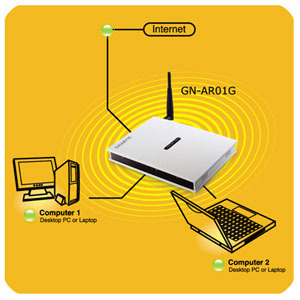
Wednesday, April 11, 2012

WPA (Wi-Fi Protected Access) is an interim standard by the WiFi Alliance to comply with the security protocol designed for wireless security. WPA will most likely be rolled into an eventual IEEE 802.11i standard. This protocol was an outcome of numerous severe flaws researchers had discovered in the preceding wireless security system called Wired Equivalent Privacy (WEP).


WPA (W-Fi Protected Access) Modes of Operations

WPA (Wi-Fi Protected Access) features two very different modes of operation:
WPA Enterprise Mode WPA PSK (Pre-Shared Key) Mode
Requires an authentication server Does not require an authentication server
Uses RADIUS protocols for authentication and key distribution Shared secret is used for authentication
Centralizes management of user credentials Device-oriented management of user credentials
The PSK (Pre-Shared Key) Mode of WPA is vulnerable to the same risks as any other shared password system, such as dictionary attacks. PSK Mode also suffers from the same key management difficulties as any system where the key is shared among multiple users, such as the difficulties in removing a user once access has been granted.
Wi Fi Protected Access WPA (Wi Fi Protected Access)
The Enterprise Mode of WPA benefits from the maturity of the RADIUS architecture — but it requires a RADIUS server. This is not something that will benefit most home users.
Security Enhancements in WPA (Wi-Fi Protected Access)
WPA provides additional security by:
  • Requiring authentication using 802.1X
  • Requiring re-keying using TKIP
  • Augmenting the ICV (Integrity Check Value) with a MIC (Message Integrity Check), to protect the header as well as the payload
  • Implementing a frame counter to discourage replay attacks

WPA2

In addition to WPA, some vendors also implement WPA2, which allows the use of AES instead of RC4. WPA2 necessitates certification and testing by the Wi-Fi Alliance. WPA2 makes use of the compulsory elements of 802.11i. It principally establishes a fresh AES-based algorithm, CCMP, which is believed to be totally secure.

How to change existing wireless

Before you can access the Wireless Access Point device, you must first determine which IP address has been assigned. To identify what the IP address is:
  1. Open your web browser.
  2. Type http://192.168.2.1 in the address bar, and then press Enter. If you are prompted to enter in a username and password, these are set to the following defaults:
    • Username: admin
    • Password: admin
  3. Select Device Table from the left menu. In this device table, note down the IP address indicated for WAP610N. You will need this IP address to continue.
  4. Device table
  5. Close and then re-open your web browser.
  6. Type http://192.168.2.X where X is the last number in the IP address of the WAP610N device. Then press Enter. If you are prompted to enter in a username and password, these are set to the following defaults:
    • Username: admin
    • Password: admin
  7. If you’ve changed the administrative password, you must use this one in place of “admin” for the password.
  8. Click the Wireless Tab, then select Basic Wireless Settings.
There are two ways to configure the Wireless Access Point device’s settings:
  • Manual
  • WiFi Protected Setup
To manually configure your wireless network:
  1. For the Configuration View select Manual.
  2. Wireless settings
  3. Ensure the following settings are used:
    • Wireless Band: 2.4 GHz
    • Network Mode: Mixed
    • Channel Width: 40 MHz only
  4. Click Save Settings.
To configure your wireless network using WiFi Protected Setup:
If you have client devices, such as wireless adapters that support WiFi Protected Setup then you can use this feature to configure wireless security for your network.
There are 3 methods available, use the method that applies to the client device you are configuring:
  1. Use WiFi Protected Setup button:
    • Click or press the WiFi Protected Setup button on the client device.
    • Within a few minutes, click the WiFi Protected Setup button on the setup screen that appears.
    • After the client device has been configured, click OK.
    • The WiFi Protected Setup Status, Wireless Band, Network Name (SSID), and Security method are displayed at the bottom of the screen.
  2. Enter WiFi Protected Setup PIN from client device:
    Use this method if your client device has a WiFi Protected Setup PIN number.
    • Enter the PIN number in the field on the screen that appears.
    • Click Register.
    • After the client device has been configured, click OK. Then refer back to your client device or its documentation for further instructions.
    • The WiFi Protected Setup Status, Wireless Band, Network Name (SSID), and Security method are displayed at the bottom of the screen.
  3. Enter WiFi Protected Setup PIN from access point on client device
    Use this method if your client device requests the Access Point’s PIN number.
    • On the client’s WiFi Protected Setup screen, enter the PIN number listed on the Access Point’s WiFi Protected Setup screen. Then click Register or the appropriate button. (The PIN number is also listed on the label on the bottom of the Wireless Access Point device).
    • After the client device has been configured, click OK. Then refer back to your client device or its documentation for further instructions.
    • The WiFi Protected Setup Status, Wireless Band, Network Name (SSID), and Security method are displayed at the bottom of the screen.

How To Secure Your Wireless Network Connection

I was watching some program the other day and was surprised to find out that many people never secure their wireless networks. Some don’t know about it, others just ignore it… If you have a wireless network set up at home make sure it’s secured. When you have an unsecured wireless network even people with a basic computer knowledge can connect to your network, use your connection for downloading illegal material and easily see every single things you do on the internet.
Video below is a perefect example of why you should always secure your wireless network connection.
If you’re a regular MakeUseOf reader I am pretty sure you are already aware of it. So my only suggestion to you would be to set your wireless to use WPA instead of WEP encryption. As for the folks who are not really sure if their wireless is secured, read on for a quick how to guide.

Securing Your Router and Wireless Network Connection

Go to ‘Network Connections’ and search for Wireless Networks in range. This should get you all available wireless networks in the area.
how to secure wireless router
Now you should be able to see whether the wireless network you’re “Connected” to is secure or not. If it’s secure, the only thing you need to do is check if it is using WPA or WEP encryption method. Right click on the network, select ‘Properties’ and then Look for ‘Encryption Type’


Secure Your Wireless Network

(Please note simply changing the encryption type from properties won’t work. You will need to access your router and change security settings for the wireless access. So just read on.)
On the other hand if your wireless network is unsecured then here is what you need to do to secure it.
1. Access your wireless router: In most cases you should be able to access your router by simply typing 192.168.0.1 IP address into your browser’s address bar. In case it doesn’t work for you then go to this website. Here you can get both the default IP and default username and password details for your router. You only need to know it’s model.

Port forwarding


This page and What is NAT provide a general explanation of reachability issues, if you just want to fix them, have a look at NAT problem

Contents

[hide]

[edit] Yellow Smileys

Smiley faces (Torrent Health icons) provide info on your torrents. The yellow smiley File:No remote.gif indicates that while your system can initiate connections with other peers (known as local connections, or L in the torrent's Details page, Peers tab, you cannot receive connections initiated from other peers (known as remote connections, or R). This is almost certainly caused by incorrectly forwarded ports from your router or firewall. You can see the L's and R's in the Details tab of your individual torrent. If you see only L's, you probably have a Port Forwarding problem. Green smileys Image:HealthOk.gif mean that you have both L and R connections to peers and are connected to the tracker. For more information on what every smiley means, click Help > About Health.
There are other possible causes for a yellow smiley. If you see a green smiley or have seen one with the same router/firewall configuration, then port forwarding may not be the culprit. Run the Help > NAT/Firewall test.
Make also sure that you have allowed "Incoming connection" as a peer source in Connection options. Disabling the optios tells Vuze to discard connections attempts from other bittorrent users, and then you would not be reachable any more.

[edit] Ports

When you connect to the internet, there are different channels that data travels by. Computers usually handle this perfectly in the background via ports, identified by numbers. For example, MSN protocol usually uses ports 6891-6900. Please see Select port for Vuze for information on which ports to use. Check out Tantalo , the official IANA port list or Wikipedia to find out more about ports.
Azureus listens to one port for torrents (defined in Connection options) and another for the embedded tracker. Two protocols, TCP and UDP, use the same port, unless specified otherwise. Thus, you need to forward one listening port for Azureus and tick both the TCP and the UDP boxes, or make an extra rule, one for each protocol.
The only time you will notice the ports is when they are closed; no data is transmitted and you get error messages like "NAT Error." This usually happen because of firewalls and routers.
Note: When you initiate the outgoing connection yourself (e.g. with web browsing), the router automatically configures a temporary forwarding for the random port that your web browser uses for that connection. But programs like Vuze, which can also accept incoming connections from others, the router does not automatically know the right port forwarding.

[edit] NAT

NAT stands for Network Address Translation. The network, which includes your router and computer, needs to translate the Internet Protocol address of your router (with its own IP address) to and from the IP address of your computer (with its own IP address). The router directs traffic to different computers connected to it and can be configured to protect you from specified traffic. It can use port forwarding to redirect data packets to a different address. The address known by the outside world (Wider Area Network, or WAN) is the IP address of your router, which redirects packets according to your instructions to your Local Area Network (LAN) address, or the local IP address of your computer.
Image:PortForwarding.gif
Vuze has built-in NAT testing logic. When you get the "NAT Error," your modem/router is not set up correctly. This is generally due to your router not forwarding the proper ports. You may read more advice on how to configure port fowarding on the NAT problem page. What is NAT may help too.

[edit] Double router port forwarding

If you have both a smart NATting modem and a NATting router/basestation, or two NAT routers, you may need to configure port forwarding in both of them. You need to set port forwarding at each router all the way from "public internet" upto your PC, always setting the forward to the next device inwards (from smart modem to router, and from router to PC). See an explanation here: http://www.portforward.com/help/doublerouterportforwarding.htm
A clear sign of the need for double router port forwarding is if your router has a private IP address also on its WAN/ADSL/internet side (whatever it is called in router status/config screens). "Private" IP address ranges are 10.x.x.x, 172.x.x.x and 192.168.x.x, and IP addresses inside those areas are different from other addresses, as they can not be reached from outside without port forwarding.
Image:DoubleRouterPortForwarding.png

[edit] Mobile/3G/satellite connections

Very often the various mobile internet connections, either through 3G/mobile dongles or satellite dishes, have been limited by the ISPs network architecture to only have private IP addresses.
If your "outermost" device, e.g. the 3G modem, has a private IP address (10.x.x.x, 172.16-31.x.x and 192.168.x.x) in its config/status screens as WAN/internet address, then it has been given by ISP's network and there isn't much you can do. As you have no config access to ISPs routers, you might have to live with the yellow smileys and the NAT problem.
  • Note: Vuze NAT test will not find this out, as it will always show the first real public IP address it reaches. In the case of mobile dongles with private addresses, the shown IP address is probably a router somewhere at the ISP.

Wednesday, April 11, 2012

WPA (Wi-Fi Protected Access) is an interim standard by the WiFi Alliance to comply with the security protocol designed for wireless security. WPA will most likely be rolled into an eventual IEEE 802.11i standard. This protocol was an outcome of numerous severe flaws researchers had discovered in the preceding wireless security system called Wired Equivalent Privacy (WEP).


WPA (W-Fi Protected Access) Modes of Operations

WPA (Wi-Fi Protected Access) features two very different modes of operation:
WPA Enterprise Mode WPA PSK (Pre-Shared Key) Mode
Requires an authentication server Does not require an authentication server
Uses RADIUS protocols for authentication and key distribution Shared secret is used for authentication
Centralizes management of user credentials Device-oriented management of user credentials
The PSK (Pre-Shared Key) Mode of WPA is vulnerable to the same risks as any other shared password system, such as dictionary attacks. PSK Mode also suffers from the same key management difficulties as any system where the key is shared among multiple users, such as the difficulties in removing a user once access has been granted.
Wi Fi Protected Access WPA (Wi Fi Protected Access)
The Enterprise Mode of WPA benefits from the maturity of the RADIUS architecture — but it requires a RADIUS server. This is not something that will benefit most home users.
Security Enhancements in WPA (Wi-Fi Protected Access)
WPA provides additional security by:
  • Requiring authentication using 802.1X
  • Requiring re-keying using TKIP
  • Augmenting the ICV (Integrity Check Value) with a MIC (Message Integrity Check), to protect the header as well as the payload
  • Implementing a frame counter to discourage replay attacks

WPA2

In addition to WPA, some vendors also implement WPA2, which allows the use of AES instead of RC4. WPA2 necessitates certification and testing by the Wi-Fi Alliance. WPA2 makes use of the compulsory elements of 802.11i. It principally establishes a fresh AES-based algorithm, CCMP, which is believed to be totally secure.

How to change existing wireless

Before you can access the Wireless Access Point device, you must first determine which IP address has been assigned. To identify what the IP address is:
  1. Open your web browser.
  2. Type http://192.168.2.1 in the address bar, and then press Enter. If you are prompted to enter in a username and password, these are set to the following defaults:
    • Username: admin
    • Password: admin
  3. Select Device Table from the left menu. In this device table, note down the IP address indicated for WAP610N. You will need this IP address to continue.
  4. Device table
  5. Close and then re-open your web browser.
  6. Type http://192.168.2.X where X is the last number in the IP address of the WAP610N device. Then press Enter. If you are prompted to enter in a username and password, these are set to the following defaults:
    • Username: admin
    • Password: admin
  7. If you’ve changed the administrative password, you must use this one in place of “admin” for the password.
  8. Click the Wireless Tab, then select Basic Wireless Settings.
There are two ways to configure the Wireless Access Point device’s settings:
  • Manual
  • WiFi Protected Setup
To manually configure your wireless network:
  1. For the Configuration View select Manual.
  2. Wireless settings
  3. Ensure the following settings are used:
    • Wireless Band: 2.4 GHz
    • Network Mode: Mixed
    • Channel Width: 40 MHz only
  4. Click Save Settings.
To configure your wireless network using WiFi Protected Setup:
If you have client devices, such as wireless adapters that support WiFi Protected Setup then you can use this feature to configure wireless security for your network.
There are 3 methods available, use the method that applies to the client device you are configuring:
  1. Use WiFi Protected Setup button:
    • Click or press the WiFi Protected Setup button on the client device.
    • Within a few minutes, click the WiFi Protected Setup button on the setup screen that appears.
    • After the client device has been configured, click OK.
    • The WiFi Protected Setup Status, Wireless Band, Network Name (SSID), and Security method are displayed at the bottom of the screen.
  2. Enter WiFi Protected Setup PIN from client device:
    Use this method if your client device has a WiFi Protected Setup PIN number.
    • Enter the PIN number in the field on the screen that appears.
    • Click Register.
    • After the client device has been configured, click OK. Then refer back to your client device or its documentation for further instructions.
    • The WiFi Protected Setup Status, Wireless Band, Network Name (SSID), and Security method are displayed at the bottom of the screen.
  3. Enter WiFi Protected Setup PIN from access point on client device
    Use this method if your client device requests the Access Point’s PIN number.
    • On the client’s WiFi Protected Setup screen, enter the PIN number listed on the Access Point’s WiFi Protected Setup screen. Then click Register or the appropriate button. (The PIN number is also listed on the label on the bottom of the Wireless Access Point device).
    • After the client device has been configured, click OK. Then refer back to your client device or its documentation for further instructions.
    • The WiFi Protected Setup Status, Wireless Band, Network Name (SSID), and Security method are displayed at the bottom of the screen.

How To Secure Your Wireless Network Connection

I was watching some program the other day and was surprised to find out that many people never secure their wireless networks. Some don’t know about it, others just ignore it… If you have a wireless network set up at home make sure it’s secured. When you have an unsecured wireless network even people with a basic computer knowledge can connect to your network, use your connection for downloading illegal material and easily see every single things you do on the internet.
Video below is a perefect example of why you should always secure your wireless network connection.
If you’re a regular MakeUseOf reader I am pretty sure you are already aware of it. So my only suggestion to you would be to set your wireless to use WPA instead of WEP encryption. As for the folks who are not really sure if their wireless is secured, read on for a quick how to guide.

Securing Your Router and Wireless Network Connection

Go to ‘Network Connections’ and search for Wireless Networks in range. This should get you all available wireless networks in the area.
how to secure wireless router
Now you should be able to see whether the wireless network you’re “Connected” to is secure or not. If it’s secure, the only thing you need to do is check if it is using WPA or WEP encryption method. Right click on the network, select ‘Properties’ and then Look for ‘Encryption Type’


Secure Your Wireless Network

(Please note simply changing the encryption type from properties won’t work. You will need to access your router and change security settings for the wireless access. So just read on.)
On the other hand if your wireless network is unsecured then here is what you need to do to secure it.
1. Access your wireless router: In most cases you should be able to access your router by simply typing 192.168.0.1 IP address into your browser’s address bar. In case it doesn’t work for you then go to this website. Here you can get both the default IP and default username and password details for your router. You only need to know it’s model.

Port forwarding


This page and What is NAT provide a general explanation of reachability issues, if you just want to fix them, have a look at NAT problem

Contents

[hide]

[edit] Yellow Smileys

Smiley faces (Torrent Health icons) provide info on your torrents. The yellow smiley File:No remote.gif indicates that while your system can initiate connections with other peers (known as local connections, or L in the torrent's Details page, Peers tab, you cannot receive connections initiated from other peers (known as remote connections, or R). This is almost certainly caused by incorrectly forwarded ports from your router or firewall. You can see the L's and R's in the Details tab of your individual torrent. If you see only L's, you probably have a Port Forwarding problem. Green smileys Image:HealthOk.gif mean that you have both L and R connections to peers and are connected to the tracker. For more information on what every smiley means, click Help > About Health.
There are other possible causes for a yellow smiley. If you see a green smiley or have seen one with the same router/firewall configuration, then port forwarding may not be the culprit. Run the Help > NAT/Firewall test.
Make also sure that you have allowed "Incoming connection" as a peer source in Connection options. Disabling the optios tells Vuze to discard connections attempts from other bittorrent users, and then you would not be reachable any more.

[edit] Ports

When you connect to the internet, there are different channels that data travels by. Computers usually handle this perfectly in the background via ports, identified by numbers. For example, MSN protocol usually uses ports 6891-6900. Please see Select port for Vuze for information on which ports to use. Check out Tantalo , the official IANA port list or Wikipedia to find out more about ports.
Azureus listens to one port for torrents (defined in Connection options) and another for the embedded tracker. Two protocols, TCP and UDP, use the same port, unless specified otherwise. Thus, you need to forward one listening port for Azureus and tick both the TCP and the UDP boxes, or make an extra rule, one for each protocol.
The only time you will notice the ports is when they are closed; no data is transmitted and you get error messages like "NAT Error." This usually happen because of firewalls and routers.
Note: When you initiate the outgoing connection yourself (e.g. with web browsing), the router automatically configures a temporary forwarding for the random port that your web browser uses for that connection. But programs like Vuze, which can also accept incoming connections from others, the router does not automatically know the right port forwarding.

[edit] NAT

NAT stands for Network Address Translation. The network, which includes your router and computer, needs to translate the Internet Protocol address of your router (with its own IP address) to and from the IP address of your computer (with its own IP address). The router directs traffic to different computers connected to it and can be configured to protect you from specified traffic. It can use port forwarding to redirect data packets to a different address. The address known by the outside world (Wider Area Network, or WAN) is the IP address of your router, which redirects packets according to your instructions to your Local Area Network (LAN) address, or the local IP address of your computer.
Image:PortForwarding.gif
Vuze has built-in NAT testing logic. When you get the "NAT Error," your modem/router is not set up correctly. This is generally due to your router not forwarding the proper ports. You may read more advice on how to configure port fowarding on the NAT problem page. What is NAT may help too.

[edit] Double router port forwarding

If you have both a smart NATting modem and a NATting router/basestation, or two NAT routers, you may need to configure port forwarding in both of them. You need to set port forwarding at each router all the way from "public internet" upto your PC, always setting the forward to the next device inwards (from smart modem to router, and from router to PC). See an explanation here: http://www.portforward.com/help/doublerouterportforwarding.htm
A clear sign of the need for double router port forwarding is if your router has a private IP address also on its WAN/ADSL/internet side (whatever it is called in router status/config screens). "Private" IP address ranges are 10.x.x.x, 172.x.x.x and 192.168.x.x, and IP addresses inside those areas are different from other addresses, as they can not be reached from outside without port forwarding.
Image:DoubleRouterPortForwarding.png

[edit] Mobile/3G/satellite connections

Very often the various mobile internet connections, either through 3G/mobile dongles or satellite dishes, have been limited by the ISPs network architecture to only have private IP addresses.
If your "outermost" device, e.g. the 3G modem, has a private IP address (10.x.x.x, 172.16-31.x.x and 192.168.x.x) in its config/status screens as WAN/internet address, then it has been given by ISP's network and there isn't much you can do. As you have no config access to ISPs routers, you might have to live with the yellow smileys and the NAT problem.
  • Note: Vuze NAT test will not find this out, as it will always show the first real public IP address it reaches. In the case of mobile dongles with private addresses, the shown IP address is probably a router somewhere at the ISP.