Wednesday, April 11, 2012

Port forwarding


This page and What is NAT provide a general explanation of reachability issues, if you just want to fix them, have a look at NAT problem

Contents

[hide]

[edit] Yellow Smileys

Smiley faces (Torrent Health icons) provide info on your torrents. The yellow smiley File:No remote.gif indicates that while your system can initiate connections with other peers (known as local connections, or L in the torrent's Details page, Peers tab, you cannot receive connections initiated from other peers (known as remote connections, or R). This is almost certainly caused by incorrectly forwarded ports from your router or firewall. You can see the L's and R's in the Details tab of your individual torrent. If you see only L's, you probably have a Port Forwarding problem. Green smileys Image:HealthOk.gif mean that you have both L and R connections to peers and are connected to the tracker. For more information on what every smiley means, click Help > About Health.
There are other possible causes for a yellow smiley. If you see a green smiley or have seen one with the same router/firewall configuration, then port forwarding may not be the culprit. Run the Help > NAT/Firewall test.
Make also sure that you have allowed "Incoming connection" as a peer source in Connection options. Disabling the optios tells Vuze to discard connections attempts from other bittorrent users, and then you would not be reachable any more.

[edit] Ports

When you connect to the internet, there are different channels that data travels by. Computers usually handle this perfectly in the background via ports, identified by numbers. For example, MSN protocol usually uses ports 6891-6900. Please see Select port for Vuze for information on which ports to use. Check out Tantalo , the official IANA port list or Wikipedia to find out more about ports.
Azureus listens to one port for torrents (defined in Connection options) and another for the embedded tracker. Two protocols, TCP and UDP, use the same port, unless specified otherwise. Thus, you need to forward one listening port for Azureus and tick both the TCP and the UDP boxes, or make an extra rule, one for each protocol.
The only time you will notice the ports is when they are closed; no data is transmitted and you get error messages like "NAT Error." This usually happen because of firewalls and routers.
Note: When you initiate the outgoing connection yourself (e.g. with web browsing), the router automatically configures a temporary forwarding for the random port that your web browser uses for that connection. But programs like Vuze, which can also accept incoming connections from others, the router does not automatically know the right port forwarding.

[edit] NAT

NAT stands for Network Address Translation. The network, which includes your router and computer, needs to translate the Internet Protocol address of your router (with its own IP address) to and from the IP address of your computer (with its own IP address). The router directs traffic to different computers connected to it and can be configured to protect you from specified traffic. It can use port forwarding to redirect data packets to a different address. The address known by the outside world (Wider Area Network, or WAN) is the IP address of your router, which redirects packets according to your instructions to your Local Area Network (LAN) address, or the local IP address of your computer.
Image:PortForwarding.gif
Vuze has built-in NAT testing logic. When you get the "NAT Error," your modem/router is not set up correctly. This is generally due to your router not forwarding the proper ports. You may read more advice on how to configure port fowarding on the NAT problem page. What is NAT may help too.

[edit] Double router port forwarding

If you have both a smart NATting modem and a NATting router/basestation, or two NAT routers, you may need to configure port forwarding in both of them. You need to set port forwarding at each router all the way from "public internet" upto your PC, always setting the forward to the next device inwards (from smart modem to router, and from router to PC). See an explanation here: http://www.portforward.com/help/doublerouterportforwarding.htm
A clear sign of the need for double router port forwarding is if your router has a private IP address also on its WAN/ADSL/internet side (whatever it is called in router status/config screens). "Private" IP address ranges are 10.x.x.x, 172.x.x.x and 192.168.x.x, and IP addresses inside those areas are different from other addresses, as they can not be reached from outside without port forwarding.
Image:DoubleRouterPortForwarding.png

[edit] Mobile/3G/satellite connections

Very often the various mobile internet connections, either through 3G/mobile dongles or satellite dishes, have been limited by the ISPs network architecture to only have private IP addresses.
If your "outermost" device, e.g. the 3G modem, has a private IP address (10.x.x.x, 172.16-31.x.x and 192.168.x.x) in its config/status screens as WAN/internet address, then it has been given by ISP's network and there isn't much you can do. As you have no config access to ISPs routers, you might have to live with the yellow smileys and the NAT problem.
  • Note: Vuze NAT test will not find this out, as it will always show the first real public IP address it reaches. In the case of mobile dongles with private addresses, the shown IP address is probably a router somewhere at the ISP.

Saturday, April 7, 2012

accessing an intranet machines from a single machine service.

The networks are jealous of customers and usually we can only access the machines on your network from within the network itself. What comes to be known as an intranet.

But many of my maintenance tasks require access to multiple machines from a move to the intranet and client do not see a feasible option, nor in line with our times.

One solution I liked most is to ask a customer to access only a single machine with public IP address.

To provide security can be configured so that only they can be accessed from the IP address of your office, and to provide flexibility, which also can be accessed from the IP address of your server in a datacenter. Anyway this whole paragraph you can skip if there is not much problem with safety.

The machine with public IP mole that is linux, more than anything because if it is not because we do not need to keep reading because the rest of the article implied that premise.

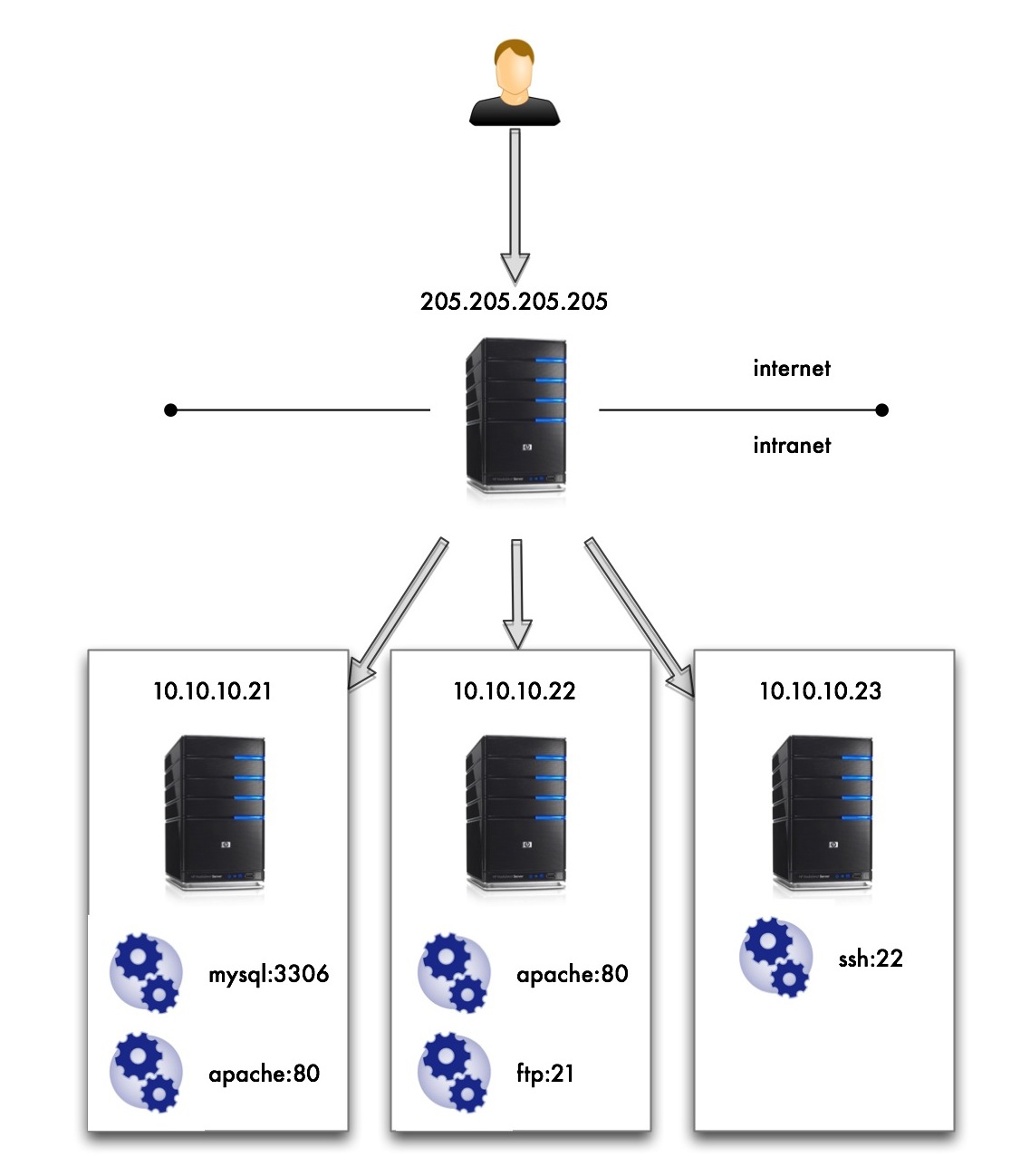
What we are going to do is what you see in the picture.

port forwarding

Here I see myself with more hair and beard without wishing to access all services of the machines on the intranet 10.10.10 .* and yet only being able to access the machine with public IP 205,205 .205.205 .

What I need is a name and this is Port Forwarding, and the implementation of this simpler than I’ve seen is made by IP Tables.

It’s going to be faster write commands to be run in order to make this work that all the talk after you have counted.

My machine with public access is the distribution of Gentoo Linux and that the examples are for this distro but should not vary much for other distros.

Install iptables (if not already )
# Emerge iptables 
We tell the kernel that allows ip-forwarding
# Echo 1> / proc/sys/net/ipv4/ip_forward 
Flash whole configuration of iptables that has default
# Iptables-F    # Iptables-t nat-F 
Allow the forward from iptables (eth0 is the public interface )
# Iptables-A FORWARD-i eth0-j ACCEPT    # Iptables-A FORWARD-o eth0-j ACCEPT 
This makes the ips are not rolling to mask the possible bypass roads and security filters for IP
# Iptables-t nat-A POSTROUTING-o eth0-j MASQUERADE 
And here at last the rules of the Port Forwarding
# Iptables-t nat-A PREROUTING-p tcp-i eth0 - dport 213,306-j DNAT - to-destination 10.10.10.21:3306    # Iptables-t nat-A PREROUTING-p tcp-i eth0 - dport 2180-j DNAT - to-destination 10.10.10.21:80    # Iptables-t nat-A PREROUTING-p tcp-i eth0 - dport 2280-j DNAT - to-destination 10.10.10.22:80    # Iptables-t nat-A PREROUTING-p tcp-i eth0 - dport 2221-j DNAT - to-destination 10.10.10.22:21    # Iptables-t nat-A PREROUTING-p tcp-i eth0 - dport 2322-j DNAT - to-destination 10.10.10.23:22 
Keep the current iptables configuration so that the rewritten failure to restart
# / Etc / init.d / iptables save 
We service iptables to boot at the start
# Rc-update add default iptables 
I think that also you have to do it
# Vim / etc / sysctl.conf 
Add / uncomment the following lines:
net.ipv4.ip_forward =  1   net.ipv4.conf.default.rp_filter =  1 
And it should work. If I leave my machine in my office and I go to:
$ Mysql-h205  205 . 205 . 205  P- 213,306 
I find the mysql of the machine 10.10.10.21 .

If I go with a browser to:
http :// 205,205 . 205 . 205 : 2280 
I encounter with the Apache of the machine 10.10.10.22 .

Port Forwarding

D-Link Port Forwarding - DIR 615 - DIR-825 - DIR-655 - DIR-628 - DIR-628

D-Link port forwarding, also known as virtual server, allows you to configure inbound Internet connections to your router to be routed to specific devices on the network.  In order for surveillance system cameras to be accessible over the Internet, your router is configured to forward requests to your surveillance DVR (standalone or Geovision) or directly to IP cameras.  The IP address that your router assigns to your DVR or to IP security cameras is a LAN (internal IP address) that can not be accessed from outside of your local network.  Port forwarding is setup to open a hole in your firewass and allow access.

These instructions are for more recent D-Link routers such as the following: DIR-615, DIR-825, DIR-655, DIR-628.  If you are looking for older model D-Link instruictions, please click here: D-Link Port Forwarding Setup.
AddThis bookmark this page for future reference
  1. Open your D-Link router's control panel by going to the IP address http://192.168.0.1/ in a web browser. You will be prompt for a password.  If you did not setup a password on your router, the dlink default password is usually blank.  Enter admin for the username and leave the password blank or enter your password.
  2. After you are logged into your router
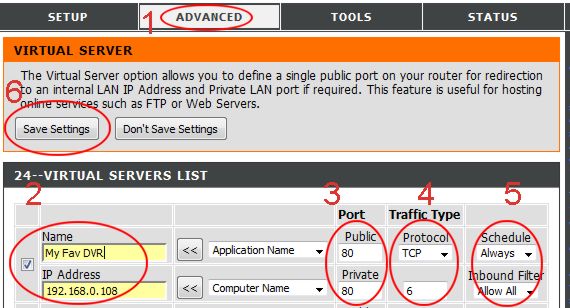
    1. click on the "Advanced" tab (#1 below).  The virtual server screen will open.

      D-link Port Forwarding
    2. Click the check box next to the first open virtual server entry and fill in the Name for this service.  This can be anything that you choose.  Also fill in the IP address of the device that you are setting up port forwarding for.
    3. Enter the port # for both the Pivate Port and Public Port.  Ports 80, 4550, and 5550 are the ports that need to be forwarded for Geovision webcamserver to work.  You need to make an entry for each port.  Most of our stand alone DVRs only use one port which should be supplied on the instructions for the particular DVR you are installing.
    4. Select "TCP" for Protocol.
    5. Seelct "Always" for Schedule, and "Allow All" for Inbound Filter.
    6. Click Save Settings.
  3. On success, the screen will display a settings saved screen
The port forwarding entry is now added.  If you need to add additional port forwrding rules, repeat the above steps.


What is my Geovision computer's IP
  1. If you do not know what the IP address is of your computer, in Windows press the start button then select Run.
  2. In the Open field of the Run window type cmd, then press OK.  A command screen will open.
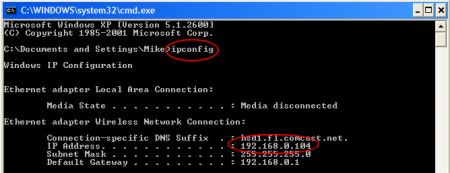
  3. On the command line type ipconfig
  4. The results should look similar to below.

    Windows - What is my IP?


bookmark this page for future reference

Tutorial: Setting Up Port Forwarding

Background Story

Bob runs a small custom office furniture company which builds awesome desks, workstations, filing cabinets and shelving. The company designs to suit, and this involves sending representatives to the offices of customers and potential customers for on-site visits.
In the early days, Bob did a lot of that running around himself, but as his business grew more successful, he was able to delegate most of that work and spend his time doing what he loves—designing unusual furniture solutions.
Bob and his three assistants are constantly churning out potential designs, and his field representatives need to be able to get his latest illustrations, floorplans, and 3D models, as well as marketing and and other documents. They need access to this stuff whenever the need arises, often when they're out of the office.
With iGet, that's easy. Bob doesn't have to train his staff how to use it, because the interface is intuitive and obvious. He doesn't have to worry about miscreants snooping on his data, because iGet uses always-on industrial-strength encryption. The only slightly tricky bit was setting up his Internet connection.

The Network Setup

Bob has a static IP address for his business DSL account, so at first it was quite simple.
(See sidebar for an additional tip for when you don't have a static IP address.)
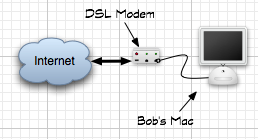
His office "network", such as it was, was just his Mac and his DSL modem:
Bob's simple network setup
Bob's simple one-Mac network, in the early days.
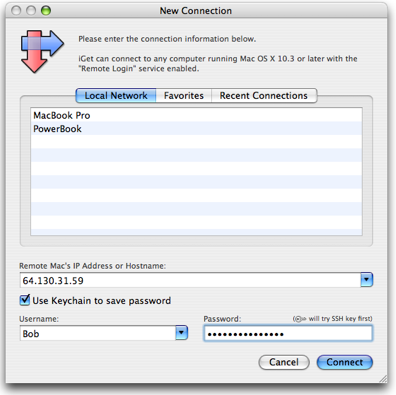
Accessing his Mac from outside the office was easy. Static IP addresses don't change, so he just typed his static IP address into iGet, entered his usernmame and password, and—boom!—he was connected and could browse his Mac, search for the files he needed, and quickly download them.
Bob using iGet to connect to his static IP address
iGet connecting to Bob's Mac via its static IP address.
As Bob's company grew and he added staff, he wanted to let them access his design files remotely as well. So, he created a user account on his Mac for each of them, and they could connect the same way he did, via the static IP.
Pretty soon, though, his staff wanted to access their own Macs remotely, too. But with only one static IP address, he had to set up a way that they could all share that Internet connection, and yet still be individually accessible. That required setting up port forwarding.

Setting Up Port Forwarding

To share his Internet connection with all the Macs in his office, Bob ordered a router from his ISP. He could have instead bought a router at his local computer store, or ordered an Airport base station from Apple.
The precise details of configuring port forwarding differ for each router, but the basic concepts do not.
Please note: We are currently in the process of updating these tutorials to cover the new iGet Mobile, as well as iGet. Most of the concepts are the same, so this tutorial may be useful in its current form. However, iGet always uses port 22, whereas iGet Mobile uses the port you specify (the default is 55555). So, when using these tutorials, iGet Mobile users should replace port 22 with whatever port iGet Mobile is configured to use.
Bob's IP address is now assigned to his router. When somebody tries to connect from the to his IP address, the router looks at the connection and decides what computer to forward the connection to. To the user, this process makes it seem that they are connecting directly to that computer.
Bob has four Macs in the office. He wants his router to be able to forward his connection to the Mac of his choice, so that he can access whichever Mac he wants. But he has only the single IP address, so every incoming connection is connecting to the same address. How can the router tell which Mac he wants to connect to?
The router figures out which Mac he wants by looking at the port number. Every Internet connection involves an IP address, and also a port number. The port number indicates the type of service being requested. For example, standard HTTP connections made by Safari use port 80, the standard port number for web servers. iGet uses port 22, the standard port for SSH connections.
Normally, most software doesn't make you deal with the port number. For example, you don't have to specify port 80 when using your web browser, because it uses that port by default. But you can specify the port in your web browser. To do so, you append a colon and the port number after the hostname or IP address.
iGet works the same way. To tell iGet to connect using a different port number than it normally would, you append a colon and the port number.
Bob is going to set up port forwarding for iGet, and while he is at it, he's going to set up port forwarding so that he can view the test web site one of his employees is creating on one of the Macs. To set this all up, he does the following:

1. Decide which port numbers will point to each Mac.

This is an arbitrary decision, and the numbers can pretty much be any valid port numbers. However, Bob has read up a little bit on the web, and he's learned that is better to use port numbers above 1024 (to avoid conflicting with other services that might be in use now or someday in the future). So he chooses 10000 as his starting number. He jots his choices down on a post-it note:
  • port 10001 goes to iGet on Mac #1
  • port 10002 goes to iGet on Mac #2
  • port 10003 goes to iGet on Mac #3
  • port 10004 goes to iGet on Mac #4
  • port 8080 goes to the test web server on Mac # 3

2. Figure out what port numbers to translate these to.

Bob will configure the router to accept connections on these non-standard port numbers that he just made up. But his Macs will expect the connections to come on the standard port. Bob doesn't want to (and doesn't know how to) tweak his Macs to listen for connections on these non-default port numbers.
Fortunately, his router will take care of that for him. When it accepts a connection on one of these weird port numbers, it will not only figure out which Mac to forward the connection to, but it will also change the port number. This way, the Mac will see the incoming connection as if it was coming on the default port. Bob has to configure his router so that it knows how to do this. He knows that the web server listens for connections on port 80, and the Mac's SSH subsystem that iGet uses listens for connections on port 22. So he fleshes out his note:
  • 64.130.31.59:10001 -> port 22 (iGet) on Mac #1
  • 164.130.31.59:10002 -> port 22 (iGet) on Mac #2
  • 64.130.31.59:10003 -> port 22 (iGet) on Mac #3
  • 64.130.31.59:10004 -> port 22 (iGet) on Mac #4
  • 64.130.31.59:8080 -> port 80 (web server) on Mac # 3

3. Give all the Macs static (unchanging) private IP addresses on the LAN.

By default, Bob's router automatically assigns private IP addresses to all his Macs. It gives the first Mac 192.168.1.10, the next one 192.168.1.11, and so on. That's convenient, but it means that each Mac's address on the local network may change from time to time.
Bob wants to make sure nothing ever changes, so he decides to give each Mac its own, unchanging private IP address. He uses the Network pane in each Mac's System Preferences application to hardcode the IP address.
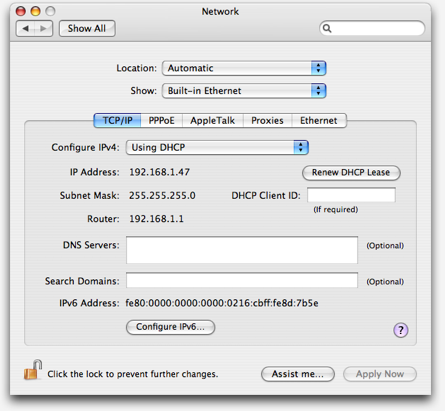
First, he goes to the Network preferences pane, then selects "Built-in Ethernet" from the "Show" popup menu. This shows the detailed settings for his Ethernet network connection. (He would change his AirPort settings instead if his Mac were connected wirelessly, but it isn't.)
Bob's original network settings
Bob's original (default) Network preferences.
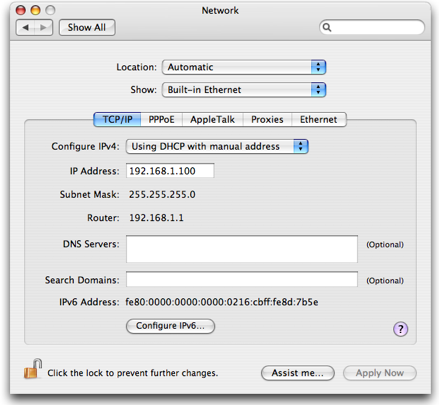
The only change he wants to make is to specify an address manually. To do that, he makes only one change: instead of "Using DHCP" in the first popup menu, he selects "Using DHCP with manual address"
Once he does this, the "IP Address" becomes editable. But the address is now "0.0.0.0", which won't work. What address should he put? Unsure, he calls his son, Jason.
"Copy the address that it shows for your router, but change the last part of the IP address," says Jason. "Start at 100, and then make the next Mac's 101, and so on. That almost always works. "
Bob's new network settings
Bob's modified Network preferences on the first Mac.
Now that Bob has given each Mac in his office its own static local IP address, he can finish his port forwarding note:
  • Public IP Address:Port -> Local IP Address:Port
  • 64.130.31.59:10001 -> 192.168.1.100:22
  • 64.130.31.59:10002 -> 192.168.1.101:22
  • 64.130.31.59:10003 -> 192.168.1.103:22
  • 64.130.31.59:10004 -> 192.168.1.104:22
  • 64.130.31.59:8080 -> 192.168.1.103:80
Or, spelled out more precisely:
Public IP Address Port Number Private LAN IP Address Port Number
64.130.31.59 10001 forwarded to 192.168.1.100 22
64.130.31.59 10002 forwarded to 192.168.1.101 22
64.130.31.59 10003 forwarded to 192.168.1.102 22
64.130.31.59 10004 forwarded to 192.168.1.104 22
64.130.31.59 8080 forwarded to 192.168.1.102 80
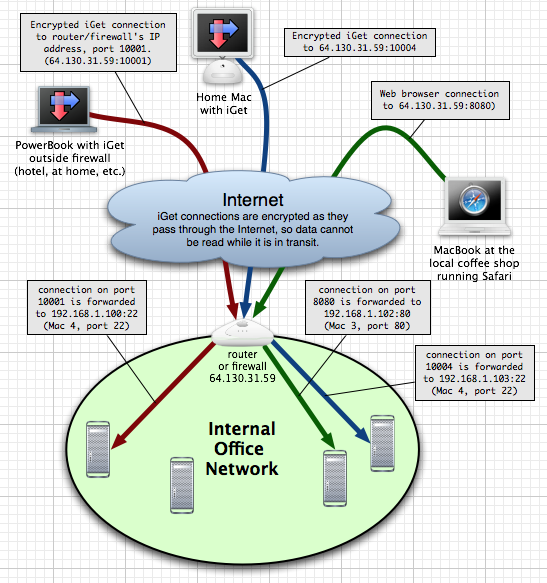
Finally, just to make sure he has everything straight in his mind, Bob fires up OmniGraffle and whips up little diagram to visualize how the port forwarding should work:
Bob's full diagram

4. Reboot everything

While not strictly necessary, Bob wants to make sure everything is configured right and will survive a reboot. If he reboots his DSL modem, router, and Mac, and can still connect, then he can be confident he didn't make any errors while configuring all the parts.
So, he reboots his gear, grabs his MacBook and walks to a nearby cafe. Using the cafe's wireless Internet connection, he opens safari and enters his static IP address, a colon, and the custom port number he uses for his test web server:
Sure, enough, he sees that his test web site loads up. The web server is running on Mac #3 back in his office; by appending the port number 8080 to the address in Safari, he has told his router "Forward this connection to Mac #3 on port 80"
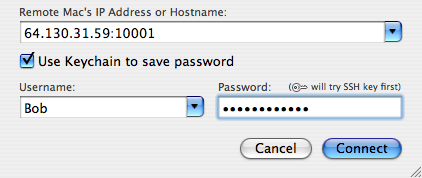
Next he fires up iGet, and tries the same trick:
Success! iGet connects and browses the files on his first Mac. Using address "64.130.31.59:10002", he connects to the next Mac, and so on. His employees can access their files, and Bob can get back to working on his latest ergonomic switchable sit/stand computer workstation.

Wednesday, April 11, 2012

Port forwarding


This page and What is NAT provide a general explanation of reachability issues, if you just want to fix them, have a look at NAT problem

Contents

[hide]

[edit] Yellow Smileys

Smiley faces (Torrent Health icons) provide info on your torrents. The yellow smiley File:No remote.gif indicates that while your system can initiate connections with other peers (known as local connections, or L in the torrent's Details page, Peers tab, you cannot receive connections initiated from other peers (known as remote connections, or R). This is almost certainly caused by incorrectly forwarded ports from your router or firewall. You can see the L's and R's in the Details tab of your individual torrent. If you see only L's, you probably have a Port Forwarding problem. Green smileys Image:HealthOk.gif mean that you have both L and R connections to peers and are connected to the tracker. For more information on what every smiley means, click Help > About Health.
There are other possible causes for a yellow smiley. If you see a green smiley or have seen one with the same router/firewall configuration, then port forwarding may not be the culprit. Run the Help > NAT/Firewall test.
Make also sure that you have allowed "Incoming connection" as a peer source in Connection options. Disabling the optios tells Vuze to discard connections attempts from other bittorrent users, and then you would not be reachable any more.

[edit] Ports

When you connect to the internet, there are different channels that data travels by. Computers usually handle this perfectly in the background via ports, identified by numbers. For example, MSN protocol usually uses ports 6891-6900. Please see Select port for Vuze for information on which ports to use. Check out Tantalo , the official IANA port list or Wikipedia to find out more about ports.
Azureus listens to one port for torrents (defined in Connection options) and another for the embedded tracker. Two protocols, TCP and UDP, use the same port, unless specified otherwise. Thus, you need to forward one listening port for Azureus and tick both the TCP and the UDP boxes, or make an extra rule, one for each protocol.
The only time you will notice the ports is when they are closed; no data is transmitted and you get error messages like "NAT Error." This usually happen because of firewalls and routers.
Note: When you initiate the outgoing connection yourself (e.g. with web browsing), the router automatically configures a temporary forwarding for the random port that your web browser uses for that connection. But programs like Vuze, which can also accept incoming connections from others, the router does not automatically know the right port forwarding.

[edit] NAT

NAT stands for Network Address Translation. The network, which includes your router and computer, needs to translate the Internet Protocol address of your router (with its own IP address) to and from the IP address of your computer (with its own IP address). The router directs traffic to different computers connected to it and can be configured to protect you from specified traffic. It can use port forwarding to redirect data packets to a different address. The address known by the outside world (Wider Area Network, or WAN) is the IP address of your router, which redirects packets according to your instructions to your Local Area Network (LAN) address, or the local IP address of your computer.
Image:PortForwarding.gif
Vuze has built-in NAT testing logic. When you get the "NAT Error," your modem/router is not set up correctly. This is generally due to your router not forwarding the proper ports. You may read more advice on how to configure port fowarding on the NAT problem page. What is NAT may help too.

[edit] Double router port forwarding

If you have both a smart NATting modem and a NATting router/basestation, or two NAT routers, you may need to configure port forwarding in both of them. You need to set port forwarding at each router all the way from "public internet" upto your PC, always setting the forward to the next device inwards (from smart modem to router, and from router to PC). See an explanation here: http://www.portforward.com/help/doublerouterportforwarding.htm
A clear sign of the need for double router port forwarding is if your router has a private IP address also on its WAN/ADSL/internet side (whatever it is called in router status/config screens). "Private" IP address ranges are 10.x.x.x, 172.x.x.x and 192.168.x.x, and IP addresses inside those areas are different from other addresses, as they can not be reached from outside without port forwarding.
Image:DoubleRouterPortForwarding.png

[edit] Mobile/3G/satellite connections

Very often the various mobile internet connections, either through 3G/mobile dongles or satellite dishes, have been limited by the ISPs network architecture to only have private IP addresses.
If your "outermost" device, e.g. the 3G modem, has a private IP address (10.x.x.x, 172.16-31.x.x and 192.168.x.x) in its config/status screens as WAN/internet address, then it has been given by ISP's network and there isn't much you can do. As you have no config access to ISPs routers, you might have to live with the yellow smileys and the NAT problem.
  • Note: Vuze NAT test will not find this out, as it will always show the first real public IP address it reaches. In the case of mobile dongles with private addresses, the shown IP address is probably a router somewhere at the ISP.

Saturday, April 7, 2012

accessing an intranet machines from a single machine service.

The networks are jealous of customers and usually we can only access the machines on your network from within the network itself. What comes to be known as an intranet.

But many of my maintenance tasks require access to multiple machines from a move to the intranet and client do not see a feasible option, nor in line with our times.

One solution I liked most is to ask a customer to access only a single machine with public IP address.

To provide security can be configured so that only they can be accessed from the IP address of your office, and to provide flexibility, which also can be accessed from the IP address of your server in a datacenter. Anyway this whole paragraph you can skip if there is not much problem with safety.

The machine with public IP mole that is linux, more than anything because if it is not because we do not need to keep reading because the rest of the article implied that premise.

What we are going to do is what you see in the picture.

port forwarding

Here I see myself with more hair and beard without wishing to access all services of the machines on the intranet 10.10.10 .* and yet only being able to access the machine with public IP 205,205 .205.205 .

What I need is a name and this is Port Forwarding, and the implementation of this simpler than I’ve seen is made by IP Tables.

It’s going to be faster write commands to be run in order to make this work that all the talk after you have counted.

My machine with public access is the distribution of Gentoo Linux and that the examples are for this distro but should not vary much for other distros.

Install iptables (if not already )
# Emerge iptables 
We tell the kernel that allows ip-forwarding
# Echo 1> / proc/sys/net/ipv4/ip_forward 
Flash whole configuration of iptables that has default
# Iptables-F    # Iptables-t nat-F 
Allow the forward from iptables (eth0 is the public interface )
# Iptables-A FORWARD-i eth0-j ACCEPT    # Iptables-A FORWARD-o eth0-j ACCEPT 
This makes the ips are not rolling to mask the possible bypass roads and security filters for IP
# Iptables-t nat-A POSTROUTING-o eth0-j MASQUERADE 
And here at last the rules of the Port Forwarding
# Iptables-t nat-A PREROUTING-p tcp-i eth0 - dport 213,306-j DNAT - to-destination 10.10.10.21:3306    # Iptables-t nat-A PREROUTING-p tcp-i eth0 - dport 2180-j DNAT - to-destination 10.10.10.21:80    # Iptables-t nat-A PREROUTING-p tcp-i eth0 - dport 2280-j DNAT - to-destination 10.10.10.22:80    # Iptables-t nat-A PREROUTING-p tcp-i eth0 - dport 2221-j DNAT - to-destination 10.10.10.22:21    # Iptables-t nat-A PREROUTING-p tcp-i eth0 - dport 2322-j DNAT - to-destination 10.10.10.23:22 
Keep the current iptables configuration so that the rewritten failure to restart
# / Etc / init.d / iptables save 
We service iptables to boot at the start
# Rc-update add default iptables 
I think that also you have to do it
# Vim / etc / sysctl.conf 
Add / uncomment the following lines:
net.ipv4.ip_forward =  1   net.ipv4.conf.default.rp_filter =  1 
And it should work. If I leave my machine in my office and I go to:
$ Mysql-h205  205 . 205 . 205  P- 213,306 
I find the mysql of the machine 10.10.10.21 .

If I go with a browser to:
http :// 205,205 . 205 . 205 : 2280 
I encounter with the Apache of the machine 10.10.10.22 .

Port Forwarding

D-Link Port Forwarding - DIR 615 - DIR-825 - DIR-655 - DIR-628 - DIR-628

D-Link port forwarding, also known as virtual server, allows you to configure inbound Internet connections to your router to be routed to specific devices on the network.  In order for surveillance system cameras to be accessible over the Internet, your router is configured to forward requests to your surveillance DVR (standalone or Geovision) or directly to IP cameras.  The IP address that your router assigns to your DVR or to IP security cameras is a LAN (internal IP address) that can not be accessed from outside of your local network.  Port forwarding is setup to open a hole in your firewass and allow access.

These instructions are for more recent D-Link routers such as the following: DIR-615, DIR-825, DIR-655, DIR-628.  If you are looking for older model D-Link instruictions, please click here: D-Link Port Forwarding Setup.
AddThis bookmark this page for future reference
  1. Open your D-Link router's control panel by going to the IP address http://192.168.0.1/ in a web browser. You will be prompt for a password.  If you did not setup a password on your router, the dlink default password is usually blank.  Enter admin for the username and leave the password blank or enter your password.
  2. After you are logged into your router
    1. click on the "Advanced" tab (#1 below).  The virtual server screen will open.

      D-link Port Forwarding
    2. Click the check box next to the first open virtual server entry and fill in the Name for this service.  This can be anything that you choose.  Also fill in the IP address of the device that you are setting up port forwarding for.
    3. Enter the port # for both the Pivate Port and Public Port.  Ports 80, 4550, and 5550 are the ports that need to be forwarded for Geovision webcamserver to work.  You need to make an entry for each port.  Most of our stand alone DVRs only use one port which should be supplied on the instructions for the particular DVR you are installing.
    4. Select "TCP" for Protocol.
    5. Seelct "Always" for Schedule, and "Allow All" for Inbound Filter.
    6. Click Save Settings.
  3. On success, the screen will display a settings saved screen
The port forwarding entry is now added.  If you need to add additional port forwrding rules, repeat the above steps.


What is my Geovision computer's IP
  1. If you do not know what the IP address is of your computer, in Windows press the start button then select Run.
  2. In the Open field of the Run window type cmd, then press OK.  A command screen will open.
  3. On the command line type ipconfig
  4. The results should look similar to below.

    Windows - What is my IP?


bookmark this page for future reference

Tutorial: Setting Up Port Forwarding

Background Story

Bob runs a small custom office furniture company which builds awesome desks, workstations, filing cabinets and shelving. The company designs to suit, and this involves sending representatives to the offices of customers and potential customers for on-site visits.
In the early days, Bob did a lot of that running around himself, but as his business grew more successful, he was able to delegate most of that work and spend his time doing what he loves—designing unusual furniture solutions.
Bob and his three assistants are constantly churning out potential designs, and his field representatives need to be able to get his latest illustrations, floorplans, and 3D models, as well as marketing and and other documents. They need access to this stuff whenever the need arises, often when they're out of the office.
With iGet, that's easy. Bob doesn't have to train his staff how to use it, because the interface is intuitive and obvious. He doesn't have to worry about miscreants snooping on his data, because iGet uses always-on industrial-strength encryption. The only slightly tricky bit was setting up his Internet connection.

The Network Setup

Bob has a static IP address for his business DSL account, so at first it was quite simple.
(See sidebar for an additional tip for when you don't have a static IP address.)
His office "network", such as it was, was just his Mac and his DSL modem:
Bob's simple network setup
Bob's simple one-Mac network, in the early days.
Accessing his Mac from outside the office was easy. Static IP addresses don't change, so he just typed his static IP address into iGet, entered his usernmame and password, and—boom!—he was connected and could browse his Mac, search for the files he needed, and quickly download them.
Bob using iGet to connect to his static IP address
iGet connecting to Bob's Mac via its static IP address.
As Bob's company grew and he added staff, he wanted to let them access his design files remotely as well. So, he created a user account on his Mac for each of them, and they could connect the same way he did, via the static IP.
Pretty soon, though, his staff wanted to access their own Macs remotely, too. But with only one static IP address, he had to set up a way that they could all share that Internet connection, and yet still be individually accessible. That required setting up port forwarding.

Setting Up Port Forwarding

To share his Internet connection with all the Macs in his office, Bob ordered a router from his ISP. He could have instead bought a router at his local computer store, or ordered an Airport base station from Apple.
The precise details of configuring port forwarding differ for each router, but the basic concepts do not.
Please note: We are currently in the process of updating these tutorials to cover the new iGet Mobile, as well as iGet. Most of the concepts are the same, so this tutorial may be useful in its current form. However, iGet always uses port 22, whereas iGet Mobile uses the port you specify (the default is 55555). So, when using these tutorials, iGet Mobile users should replace port 22 with whatever port iGet Mobile is configured to use.
Bob's IP address is now assigned to his router. When somebody tries to connect from the to his IP address, the router looks at the connection and decides what computer to forward the connection to. To the user, this process makes it seem that they are connecting directly to that computer.
Bob has four Macs in the office. He wants his router to be able to forward his connection to the Mac of his choice, so that he can access whichever Mac he wants. But he has only the single IP address, so every incoming connection is connecting to the same address. How can the router tell which Mac he wants to connect to?
The router figures out which Mac he wants by looking at the port number. Every Internet connection involves an IP address, and also a port number. The port number indicates the type of service being requested. For example, standard HTTP connections made by Safari use port 80, the standard port number for web servers. iGet uses port 22, the standard port for SSH connections.
Normally, most software doesn't make you deal with the port number. For example, you don't have to specify port 80 when using your web browser, because it uses that port by default. But you can specify the port in your web browser. To do so, you append a colon and the port number after the hostname or IP address.
iGet works the same way. To tell iGet to connect using a different port number than it normally would, you append a colon and the port number.
Bob is going to set up port forwarding for iGet, and while he is at it, he's going to set up port forwarding so that he can view the test web site one of his employees is creating on one of the Macs. To set this all up, he does the following:

1. Decide which port numbers will point to each Mac.

This is an arbitrary decision, and the numbers can pretty much be any valid port numbers. However, Bob has read up a little bit on the web, and he's learned that is better to use port numbers above 1024 (to avoid conflicting with other services that might be in use now or someday in the future). So he chooses 10000 as his starting number. He jots his choices down on a post-it note:
  • port 10001 goes to iGet on Mac #1
  • port 10002 goes to iGet on Mac #2
  • port 10003 goes to iGet on Mac #3
  • port 10004 goes to iGet on Mac #4
  • port 8080 goes to the test web server on Mac # 3

2. Figure out what port numbers to translate these to.

Bob will configure the router to accept connections on these non-standard port numbers that he just made up. But his Macs will expect the connections to come on the standard port. Bob doesn't want to (and doesn't know how to) tweak his Macs to listen for connections on these non-default port numbers.
Fortunately, his router will take care of that for him. When it accepts a connection on one of these weird port numbers, it will not only figure out which Mac to forward the connection to, but it will also change the port number. This way, the Mac will see the incoming connection as if it was coming on the default port. Bob has to configure his router so that it knows how to do this. He knows that the web server listens for connections on port 80, and the Mac's SSH subsystem that iGet uses listens for connections on port 22. So he fleshes out his note:
  • 64.130.31.59:10001 -> port 22 (iGet) on Mac #1
  • 164.130.31.59:10002 -> port 22 (iGet) on Mac #2
  • 64.130.31.59:10003 -> port 22 (iGet) on Mac #3
  • 64.130.31.59:10004 -> port 22 (iGet) on Mac #4
  • 64.130.31.59:8080 -> port 80 (web server) on Mac # 3

3. Give all the Macs static (unchanging) private IP addresses on the LAN.

By default, Bob's router automatically assigns private IP addresses to all his Macs. It gives the first Mac 192.168.1.10, the next one 192.168.1.11, and so on. That's convenient, but it means that each Mac's address on the local network may change from time to time.
Bob wants to make sure nothing ever changes, so he decides to give each Mac its own, unchanging private IP address. He uses the Network pane in each Mac's System Preferences application to hardcode the IP address.
First, he goes to the Network preferences pane, then selects "Built-in Ethernet" from the "Show" popup menu. This shows the detailed settings for his Ethernet network connection. (He would change his AirPort settings instead if his Mac were connected wirelessly, but it isn't.)
Bob's original network settings
Bob's original (default) Network preferences.
The only change he wants to make is to specify an address manually. To do that, he makes only one change: instead of "Using DHCP" in the first popup menu, he selects "Using DHCP with manual address"
Once he does this, the "IP Address" becomes editable. But the address is now "0.0.0.0", which won't work. What address should he put? Unsure, he calls his son, Jason.
"Copy the address that it shows for your router, but change the last part of the IP address," says Jason. "Start at 100, and then make the next Mac's 101, and so on. That almost always works. "
Bob's new network settings
Bob's modified Network preferences on the first Mac.
Now that Bob has given each Mac in his office its own static local IP address, he can finish his port forwarding note:
  • Public IP Address:Port -> Local IP Address:Port
  • 64.130.31.59:10001 -> 192.168.1.100:22
  • 64.130.31.59:10002 -> 192.168.1.101:22
  • 64.130.31.59:10003 -> 192.168.1.103:22
  • 64.130.31.59:10004 -> 192.168.1.104:22
  • 64.130.31.59:8080 -> 192.168.1.103:80
Or, spelled out more precisely:
Public IP Address Port Number Private LAN IP Address Port Number
64.130.31.59 10001 forwarded to 192.168.1.100 22
64.130.31.59 10002 forwarded to 192.168.1.101 22
64.130.31.59 10003 forwarded to 192.168.1.102 22
64.130.31.59 10004 forwarded to 192.168.1.104 22
64.130.31.59 8080 forwarded to 192.168.1.102 80
Finally, just to make sure he has everything straight in his mind, Bob fires up OmniGraffle and whips up little diagram to visualize how the port forwarding should work:
Bob's full diagram

4. Reboot everything

While not strictly necessary, Bob wants to make sure everything is configured right and will survive a reboot. If he reboots his DSL modem, router, and Mac, and can still connect, then he can be confident he didn't make any errors while configuring all the parts.
So, he reboots his gear, grabs his MacBook and walks to a nearby cafe. Using the cafe's wireless Internet connection, he opens safari and enters his static IP address, a colon, and the custom port number he uses for his test web server:
Sure, enough, he sees that his test web site loads up. The web server is running on Mac #3 back in his office; by appending the port number 8080 to the address in Safari, he has told his router "Forward this connection to Mac #3 on port 80"
Next he fires up iGet, and tries the same trick:
Success! iGet connects and browses the files on his first Mac. Using address "64.130.31.59:10002", he connects to the next Mac, and so on. His employees can access their files, and Bob can get back to working on his latest ergonomic switchable sit/stand computer workstation.